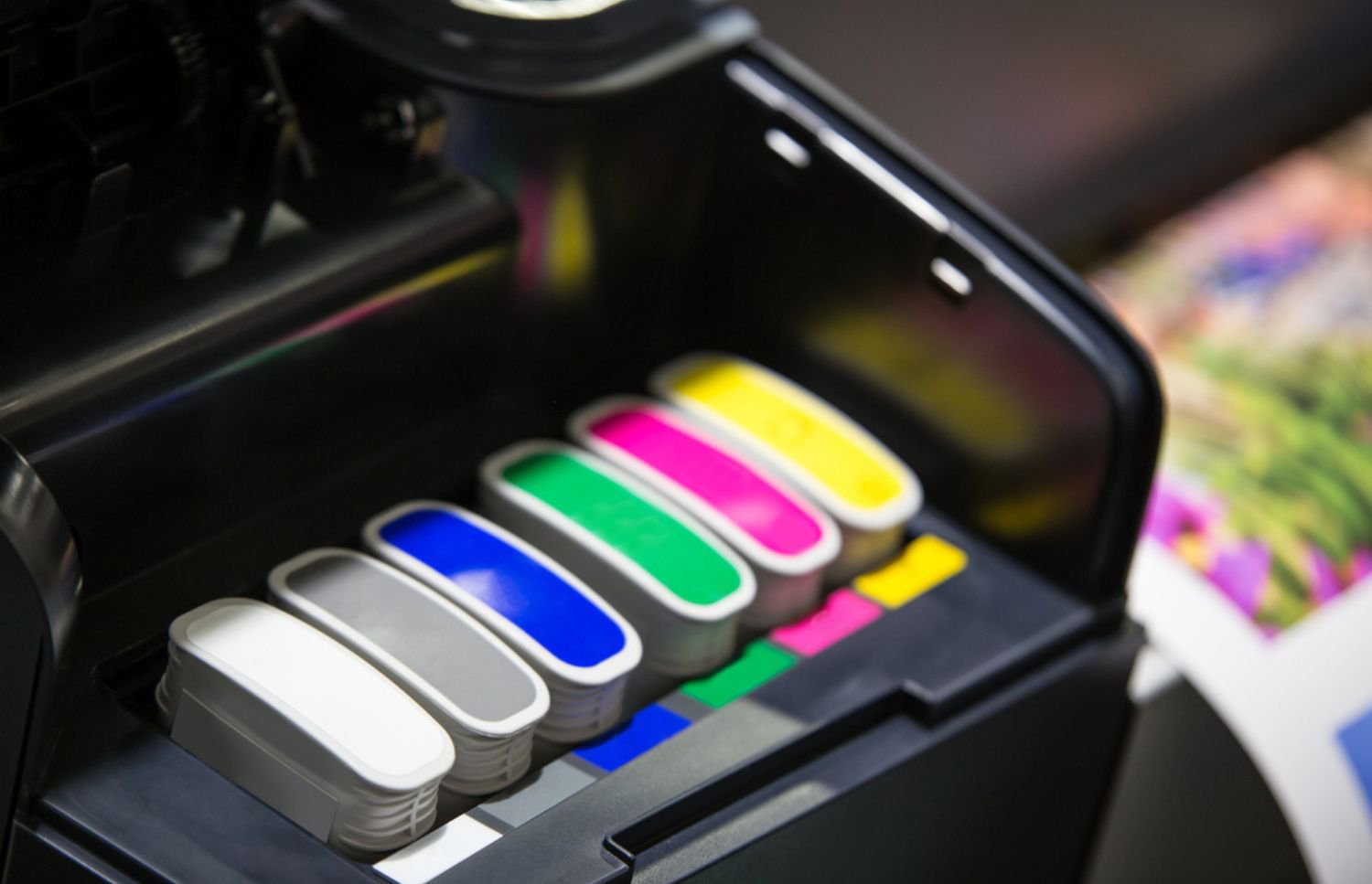
Print interruptions rarely happen at convenient times. Most start with a missed warning or an inaccurate estimate of remaining supplies. Knowing how to check printer ink levels consistently helps prevent stalled jobs, rushed replacements, and unnecessary strain on printer components. When ink levels are monitored correctly and replenished on time, printers operate more predictably and stay in better condition over the long term.
Ink level checks are a basic task, but they play a critical role in production continuity. The guide below explains how to check ink levels using common methods, highlights why timing matters, and shows how structured print management reduces supply-related disruptions.
How to Check Printer Ink Levels Using the Printer Display
Many modern printers provide ink level information directly on the control panel. This is often the fastest way to assess supply status.
Start by accessing the printer menu or home screen. Navigate to a section labeled Ink Levels, Supplies, or Maintenance. The display typically shows approximate fill levels for each cartridge using bars or percentage indicators.
These readings provide a general snapshot, not an exact measurement. Ink level indicators are designed to signal when replacement planning should begin, not when the cartridge is completely empty. Acting early protects print quality and internal components.

How to Check Printer Ink Levels From a Computer
Checking ink levels through a connected computer offers more detailed visibility and is useful when managing shared devices.
On Windows systems, open Devices and Printers, right-click the printer, and select Printing Preferences or Printer Properties. Many drivers display ink levels under a Maintenance or Status tab.
On macOS, open System Settings, select Printers and Scanners, choose the printer, and click Options or Supplies. Supported models show estimated ink levels for each cartridge.
Driver-based checks are especially helpful when printers are not physically nearby, allowing teams to monitor supplies remotely.
How to Check Printer Ink Levels Using Manufacturer Software
Printer manufacturers often provide dedicated software or utilities that track ink usage. These tools offer alerts, usage history, and replacement prompts.
Once installed, the software runs in the background and notifies users when ink reaches predefined thresholds. While convenient, these alerts are frequently ignored or dismissed, especially in busy environments.
Treat software alerts as early warnings rather than emergencies. Planning replacements at the first alert reduces last-minute disruptions.
Why Visual Print Quality Is Not a Reliable Indicator
Many users wait until prints fade or streak before checking ink. This approach causes avoidable damage.
Low ink levels introduce air into the ink system, which leads to inconsistent flow and overheating of printheads. By the time quality degrades visibly, internal stress has already occurred.
Regular ink level checks prevent these conditions and reduce the need for aggressive cleaning cycles that waste ink and accelerate wear.
How Often You Should Check Printer Ink Levels
Ink levels should be checked on a predictable schedule rather than only when problems arise. High-volume printers benefit from weekly checks, while lower-use devices may require biweekly or monthly reviews.
Consistency matters more than frequency. Routine checks create patterns that make abnormal usage easy to spot. Sudden spikes in consumption often indicate configuration issues, user behavior changes, or device faults. Scheduled checks also support better inventory planning and fewer emergency orders.
The Risks of Letting Ink Run Too Low
Allowing cartridges to run nearly empty increases maintenance costs. Printers compensate for low ink by running additional cleaning cycles, which consume remaining ink rapidly.
Extended low-ink operation raises the risk of clogged or damaged printheads. In some cases, printers lock out cartridges entirely once a threshold is crossed, halting production unexpectedly. Replacing ink before it reaches critical levels protects both output quality and hardware longevity.
Keeping Ink in Stock Without Overstocking
Maintaining spare ink is essential, but excess inventory introduces its own risks. Eventually, ink does expire, degrade, and ultimately, become a liability when stored too long.
Effective stock management balances availability with rotation. Using older cartridges first and tracking expiration dates ensures supplies remain viable.
Without visibility, expired ink often circulates into printers unnoticed, creating recurring issues that appear mechanical rather than supply-related.

Scaling Ink Monitoring Across Multiple Printers
As printer fleets grow, manual checks become inconsistent. Devices may be overlooked, alerts missed, and replacements delayed.
Centralized monitoring consolidates ink data across all printers. Automated tracking identifies low levels early, forecasts replacement needs, and standardizes response timing. This approach reduces downtime, improves cost control, and removes guesswork from supply management.
When Ink Level Issues Signal Deeper Problems
Frequent low-ink alerts, unusually fast depletion, or inaccurate readings may indicate calibration errors, firmware issues, or printhead problems.
Replacing cartridges repeatedly does not resolve these situations. Diagnostics are needed to identify whether the issue lies with the supply system or the device itself. Early intervention prevents wasted ink and limits long-term damage.
Turning Ink Checks Into a Reliability Strategy
Knowing how to check printer ink levels is a foundational skill, but consistent production depends on more than periodic checks. Timely replacement, accurate tracking, and proactive maintenance all work together to keep printers operating smoothly.
For organizations managing multiple devices, manual processes often fall short. Structured print management provides visibility, accountability, and preventative care. With monitored supplies, scheduled service, and on-site support, ink-related disruptions become rare rather than routine.
Onsite Laser Medic helps organizations maintain reliable print operations by monitoring ink levels, managing inventory, and servicing devices before issues escalate. Keep production moving and printers performing at their best. Contact Onsite Laser Medic today.