When a business-critical device suddenly shows a "printer offline" message, productivity doesn’t just pause. It comes to a complete stop. For enterprise print environments managing dozens or hundreds of devices, offline errors can cause workflow bottlenecks, service backlogs, and added strain on IT teams.
Although many assume the issue is network-related, offline printers often point to brand-specific software conflicts, outdated drivers, or firmware mismatches. Solving the problem effectively requires understanding both the technical root causes and the manufacturer’s particular nuances.
Why Printers Go Offline Without Warning
The phrase "printer offline" might seem straightforward, but the underlying causes are rarely simple. It can signal a loss of network connectivity, a misconfigured port, or even a sleep mode function that fails to respond. Each situation affects how quickly users and IT teams can restore functionality. That’s why investigating the specific environment and printer model is essential for resolution.
Network issues are among the most common culprits behind offline messages. Even with proper IP addressing, DHCP conflicts or firewall blocks can interrupt communication between the printer and host system. In environments with multiple subnets, unmanaged routing rules often make printers seem invisible to certain departments. Updating printer firmware and configuring SNMP settings helps improve visibility and prevent recurring issues.

Another major trigger is driver incompatibility. When printer drivers are outdated or replaced by incorrect versions, devices may fail to communicate even when physically connected. Universal drivers can create more issues than they solve, particularly in environments using multifunction devices or printers with embedded workflow apps. Standardizing driver deployment based on printer make and model resolves most of these cases.
Internal errors such as memory overflows, firmware corruption, or misconfigured default settings can also push a printer offline. Auto-recovery features aren’t always reliable, especially when enterprise-class devices are integrated with custom workflows. Periodic firmware checks and structured configuration management are key to reducing this risk.
What’s Really Behind Printer Offline Errors
Several predictable causes can explain why printers across brands and environments go offline. Addressing them proactively can significantly reduce downtime and increase fleet reliability.
- Network Interruptions
Whether it's a loose Ethernet cable or a dropped Wi-Fi signal, connectivity is a frequent failure point. For Wi-Fi enabled models, bandwidth competition or weak signals may cause intermittent offline states. Assigning static IP addresses and segregating print traffic from general user traffic helps stabilize connections. - Power Management Conflicts
Many business-class printers enter deep sleep modes to save energy, but some fail to wake properly when a print job arrives. Misalignment between operating system power settings and printer firmware can also prevent proper communication. Disabling deep sleep modes or adjusting time-out thresholds can mitigate this problem. - Incorrect Default Printer Configuration
In offices with multiple printers, users often send documents to the wrong device. If a default printer is no longer on the network or turned off, the system may label it as offline. Training users to select the correct printer and managing default settings through group policies can reduce confusion. - Driver and Firmware Discrepancies
When IT departments roll out updates without validating driver compatibility, offline errors can spike. Similarly, devices running on outdated firmware may reject newer print commands or fail to authenticate properly. Regular audits of driver versions and firmware health are crucial in enterprise environments.
Brand-Based Fixes for Printer Offline Problems
Each major printer brand has unique architecture and response behavior when it comes to offline errors. Knowing what to adjust and where is the key to quick recovery.
HP Printers
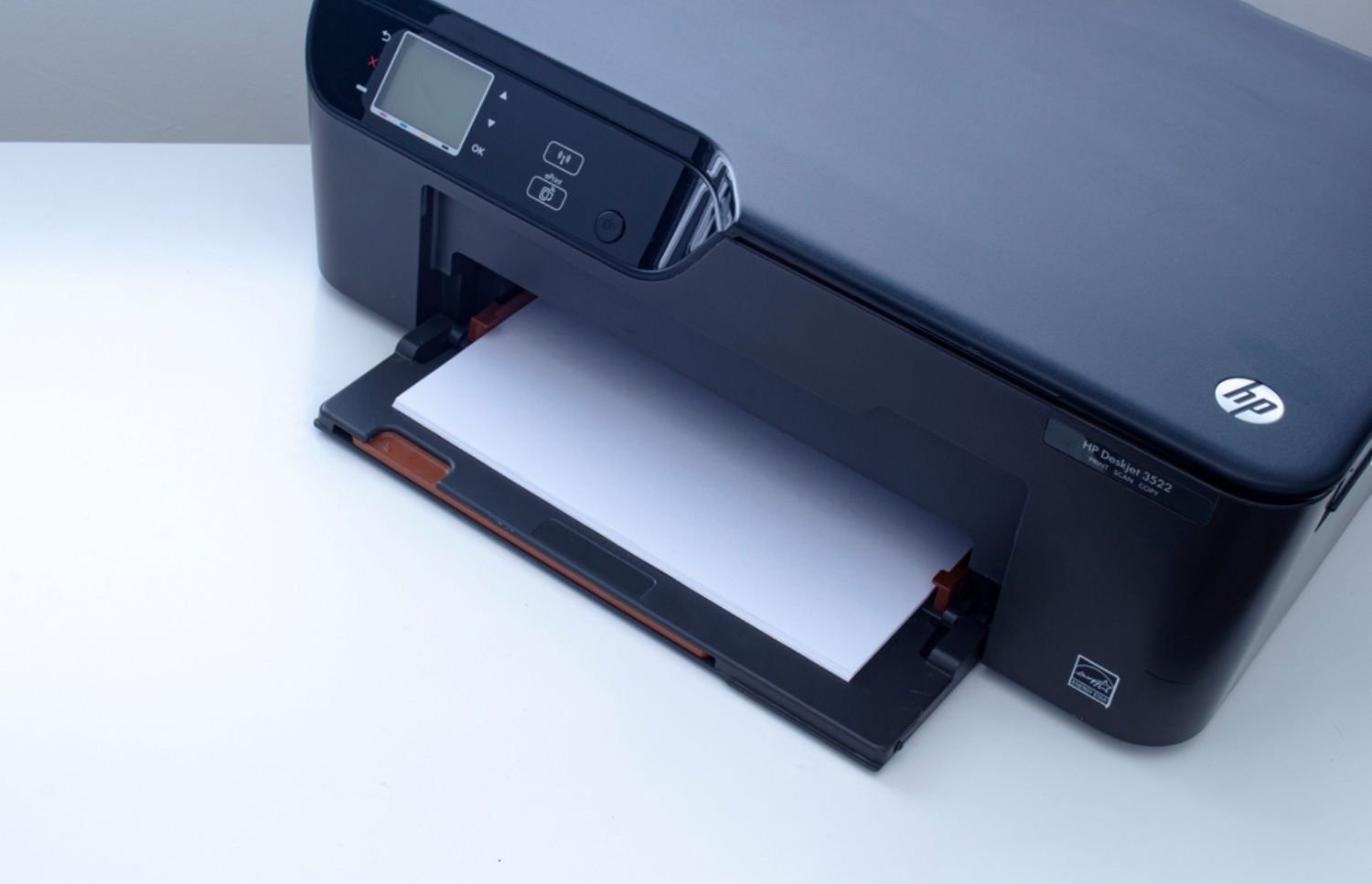
HP devices are prone to WSD port conflicts, especially when auto-installed by Windows. Switching to a standard TCP/IP port and manually assigning the IP address typically resolves the issue. HP’s Smart Install can sometimes interfere with print services on domain-joined devices. Disabling this feature and using HP Universal Print Driver (UPD) with care helps maintain consistent performance.
Canon Printers
Canon printers frequently encounter spooler service errors after Windows updates. Restarting the print spooler and reinstalling drivers often restores function. Additionally, Canon's "Quiet Mode" or Eco settings can slow response times, leading users to believe the printer is offline. Disabling these features or updating firmware can help.
Brother Printers
Brother models often default to dynamic IP settings, making them prone to DHCP reassignments. Assigning static IPs or using MAC address reservations stabilizes the connection. In some cases, Brother Control Center software conflicts with print queue status. Removing and reinstalling the suite resolves these issues.
Epson and Xerox Printers
Epson and Xerox enterprise models may fail due to misconfigured SNMP settings. Disabling SNMP on the port settings or updating community string settings often fixes the offline status. Xerox devices may also display offline due to app or connector failures within their embedded solutions platform. A soft reset and app refresh typically resolves this.

How Smart Maintenance Keeps Printers Online
Most printer offline errors are preventable with regular oversight and tailored support. Relying on reactive support models increases downtime and disrupts operations. Preventative maintenance, when customized for each device type, greatly improves reliability.
For high-volume printers, scheduled inspections help detect early warning signs such as slow wake times or partial firmware failures. These are often overlooked until a full offline status occurs. Enterprise environments benefit from having maintenance logs tied to device performance benchmarks.
Configuring alerts within print management software can also catch early signs of issues. When a device repeatedly fails to wake or delays job processing, admins can respond before the problem escalates. Using remote monitoring tools streamlines this process.
Aligning print fleet strategy with environmental goals ensures device performance isn’t compromised by aggressive energy-saving settings. According to LLCBuddy, 50% of help desk calls are related to printers, and 15% of IT support time is spent on print-related issues. Misconfigured settings, intended to save energy, often trigger unnecessary downtime and highlight the need for balanced configuration and proactive oversight.
How Centralized Support Reduces Printer Downtime
Many businesses find that in-house troubleshooting consumes more time than it's worth. Managed Print Services (MPS) offer a more structured and reliable path forward. With professional oversight, printer offline errors become rare instead of routine.
MPS providers offer centralized monitoring, ensuring every device is patched, connected, and configured to meet business needs. Support is not just reactive. It includes strategic planning for future growth and device lifecycle management. Businesses also benefit from consistent reporting and uptime metrics.
Additionally, MPS programs simplify the chaos of dealing with multiple vendors and models. Whether your print environment includes HP, Canon, Brother, Epson, or Dell, unified support can prevent knowledge gaps. Businesses that integrate automation and MPS can experience fewer interruptions and more predictable print performance.
Get Expert Support for Printer Offline Issues
Printer offline problems are rarely random. From outdated firmware to driver mismatches and network misconfigurations, the underlying causes require device-specific expertise. Enterprises need more than temporary fixes. They need proactive support that prevents downtime and enhances device reliability.
If your printers frequently go offline and internal fixes aren’t holding up, expert help is available. Contact On-Site LaserMedic to schedule a service review tailored to your print environment. With deep experience across major printer brands, they’ll keep your entire fleet online and optimized.