Getting mobile devices ready for printing improves productivity when teams clearly understand how to connect phone to printer correctly. Smooth mobile printing ensures documents move quickly from smartphones or tablets to shared office printers without workflow interruptions. Reliable configuration gives employees confidence that their print jobs will complete without delays or repeated troubleshooting.
A well-planned setup strengthens cross-department collaboration by supporting flexible printing from multiple devices during busy periods. Confirming hardware compatibility, installing the proper apps, and securing network access helps maintain dependable performance. Prioritizing these steps prevents avoidable errors and keeps daily operations running efficiently across the entire office.
How to Connect Phone to Printer: iOS Device Setup
Many iPhone and iPad users need clear guidance when preparing mobile devices for reliable office printing. Stable performance requires ensuring the device connects correctly to the appropriate wireless network or WiFi Direct signal while following security considerations. Careful setup helps teams avoid unnecessary delays during urgent printing tasks in fast-paced environments.

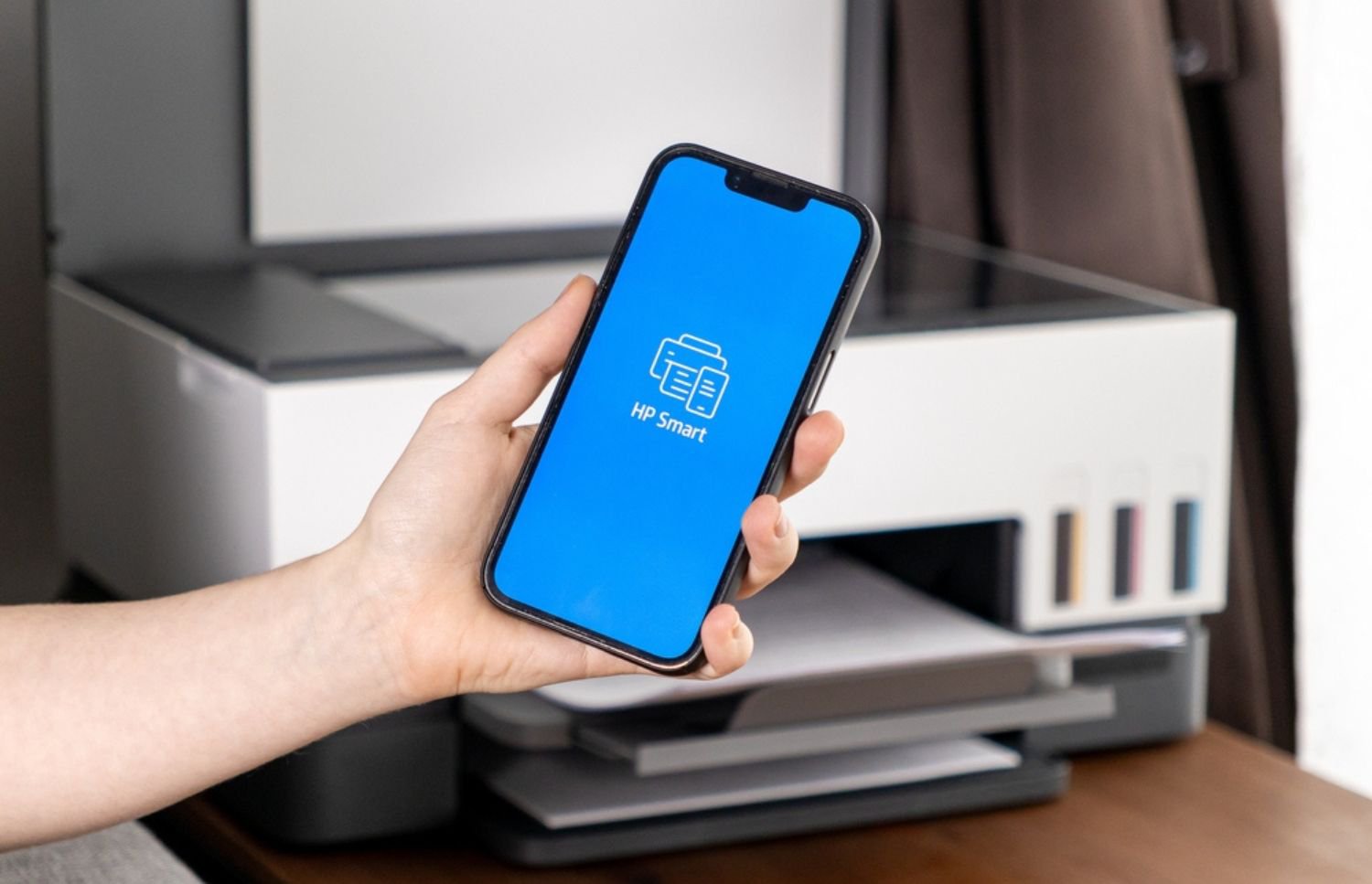
Users can open their documents, tap the Share icon, and choose Print to access available printers easily. Adjusting options like color mode, paper size, or duplex settings ensures each job meets required output standards while maintaining secure printing practices. Restarting devices or updating firmware often resolves communication issues that interrupt printing workflows.
Connectivity issues frequently result from sleep mode, offline status, or restrictive network policies that block device access. Keeping printer firmware updated ensures compatibility with ongoing iOS updates and reduces unexpected print failures, while also supporting proper authentication and data security. This approach promotes smoother operations and helps teams remain productive after learning how to connect phone to printer effectively.
How to Connect Phone to Printer: Android Device Setup
Android devices often require installing either the manufacturer’s print service plug-in or the default Android Print Service for dependable performance. After installation, users should confirm that the printer appears in mobile print settings and remains reachable through WiFi or WiFi Direct. These steps help ensure smooth document handling and create a more efficient workflow during busy office tasks.
Users can open any document, tap the menu icon, and select Print before choosing the correct printer. Regular updates for print services and firmware strengthen reliability and support how to connect phone to printer without unnecessary interruptions. This process allows staff to focus on their responsibilities by reducing troubleshooting time and maintaining consistent output.
Troubleshooting Common Connectivity Errors
Even with proper setup, offices can encounter occasional issues, which is why knowing how to connect phone to printer is important. Errors often arise from network conflicts, outdated firmware, or devices failing to communicate correctly during active work hours. Having practical troubleshooting strategies ensures staff maintain reliable access to printing without repeated delays.
Here are the most effective steps for resolving common connectivity errors:
- A “printer not found” error usually indicates the mobile device is on the wrong network or the printer is in sleep mode. Verify SSIDs, wake the printer, and confirm it is powered and reachable.
- Jobs stuck in the print queue can result from an overloaded spooler or firmware glitches. Clearing the queue and restarting devices often resolves the problem.
- Authentication errors occur when secure print release or user login is enabled. Ensure credentials are correct and access permissions are set accordingly.
- Regularly auditing mobile printing setup helps prevent these issues and improves overall productivity.
Firmware updates, app updates, and network checks prevent recurring errors and maintain a seamless printing experience. Confirm that all devices and printers are synchronized to the latest security and software standards. Establishing a maintenance routine keeps staff printing efficiently without interruption or frustration.
Choosing the Right Connection Method
Choosing the right connection method significantly impacts printing reliability and workflow efficiency, which is why knowing how to connect phone to printer is essential. WiFi networks provide stable connections for full-feature printing in offices, while Wi-Fi Direct enables direct device-to-printer communication without relying on the LAN. Properly selecting and configuring connections supports office productivity and integrates advanced solutions for smarter print management.
Here are key considerations for choosing the most effective connection method:
- Bluetooth printing works well for smaller setups but is limited in range and features compared to WiFi or cloud printing.
- Cloud-based printing allows remote and hybrid teams to print securely from anywhere without installing drivers.
- Office evaluation involves assessing office size, device distribution, and security requirements to ensure reliable and efficient mobile printing.
- Connection configuration for WiFi, Bluetooth, or cloud printing supports how to connect phone to printer efficiently.
Proper configuration and regular review of network settings, access controls, and connection methods keeps mobile printing reliable across all devices. These strategies reduce downtime, minimize errors, and help staff remain productive while leveraging AI-driven solutions. Establishing a consistent evaluation routine ensures mobile printing operates smoothly for all employees and teams.

Optimizing Mobile Printing for Multiple Users
Managing mobile printing for multiple users requires clear policies and monitoring to reduce downtime and excessive costs. Implementing these strategies also helps staff understand how to connect phone to printer efficiently while maintaining workflow consistency.
Segment access by user group and device type, applying rules for duplex printing, color limits, and authentication. Monitoring print usage and consumables ensures resources are optimized and printing remains efficient, while supporting how to connect phone to printer across devices.
Scheduled preventive maintenance, including firmware checks, mobile app updates, and network connectivity audits, helps reduce failures. For expert guidance and to ensure mobile printing runs smoothly for multiple users, schedule support for mobile printing.
Ensuring Mobile Printing Works for Your Team
Proper mobile printing setup allows teams to send documents from phones and tablets with confidence and efficiency. Effective configuration and maintenance of devices help organizations gain operational flexibility, improve workflow, and strengthen printer utilization.
For expert guidance on printer configuration, network integration, and mobile printing solution, get in touch with On-Site LaserMedic to schedule assistance. Getting professional support ensures mobile printing runs smoothly and reduces downtime across your office environment.
Explore Section 179 Savings With On-Site Laser Medic. DISCLAIMER: Section 179 may offer tax advantages for qualifying equipment purchases. This information is for general awareness only and is not tax advice. Eligibility varies by business. Please consult your CPA or tax professional to understand how Section 179 applies to your specific situation.