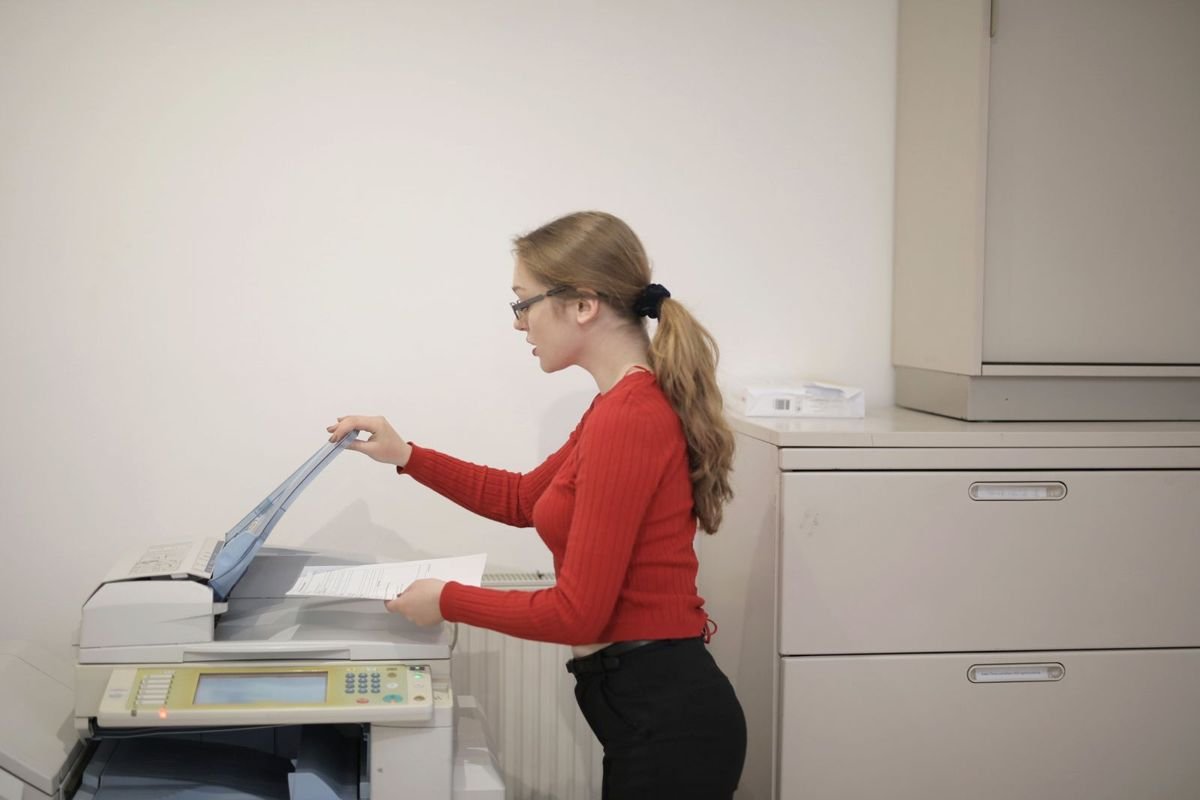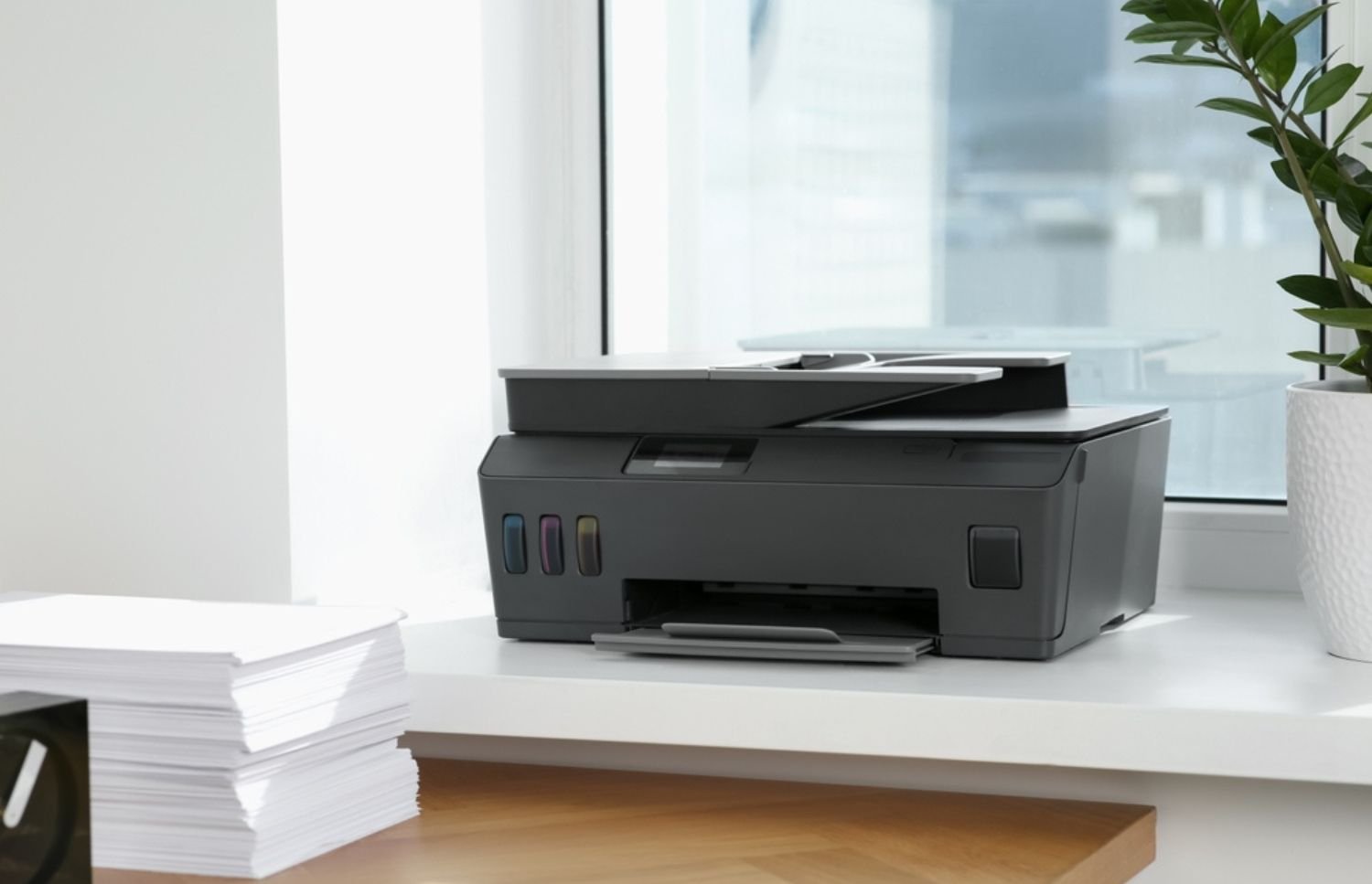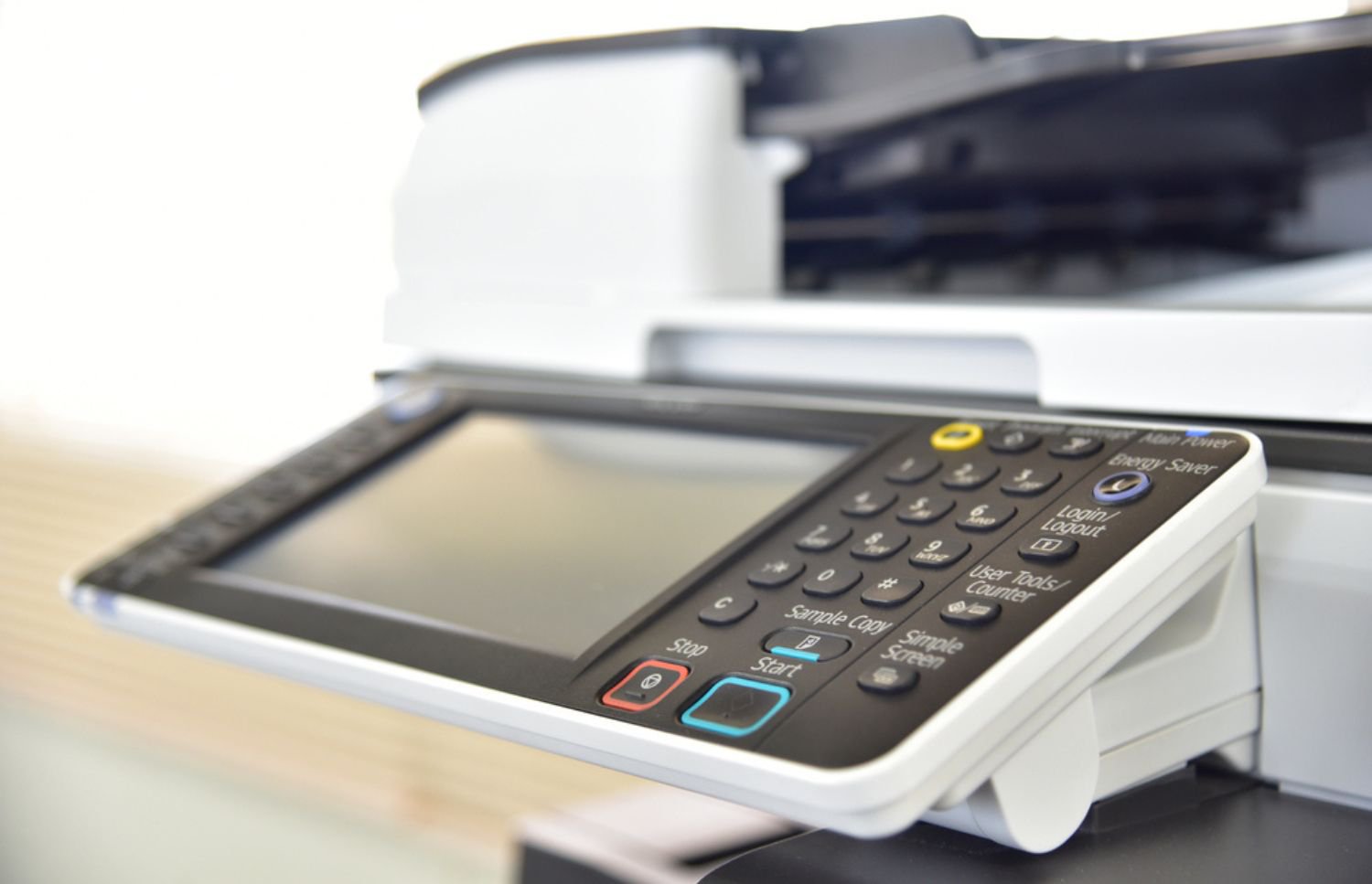

Many offices still use separate printers, scanners, copiers and fax machines. Each device takes up space, needs supplies and may require separate servicing. A multifunction printer brings several of these jobs into one networked device. This can reduce equipment clutter and simplify office printing. This guide explains what these machines do, how to choose the right number for your team and which features matter most. On-Site LaserMedic also manages print fleets for offices, which is the managed print services approach described later.
What a Multifunction Printer Does
A multifunction printer, sometimes sold as an all-in-one, combines printing with scanning and copying, and most office models add fax. ENERGY STAR defines a multifunction device as a product that performs the core functions of a printer and a scanner. Manufacturers describe their office models the same way: HP lists "print, copy, scan and optional fax" for one enterprise model, and Xerox lists "copy, email, fax, print, scan" as standard functions on another.
Print, scan, copy and fax in one cabinet
Printing and copying cover the paper side of the work, scanning turns paper into files, and fax handles the documents some clients and agencies still require. The benefit for an office is that one device, one network connection and one set of supplies serves all four jobs.
Multifunctional printers and copiers are close relatives
You will see the same machines called multifunctional printers, all-in-ones or multifunction copiers. The label matters less than the specifications, so compare each model on speed, recommended monthly volume, security and running costs. Our guide to business copier features and costs covers the larger copier-class machines in more detail.
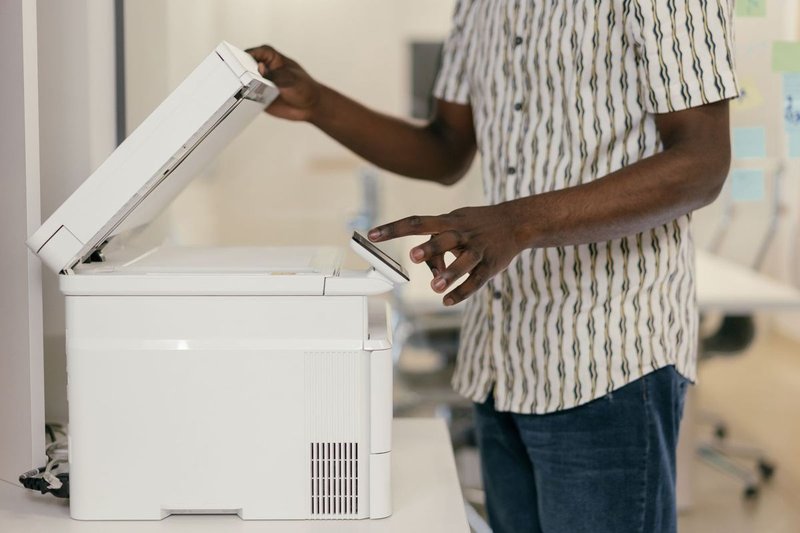
How a Multifunction Printer Compares With Single-Function Devices
The table below shows the main point: a single-function device can be the right call for one narrow job, while a multifunction printer suits any office that prints, scans and copies in the same place.

Security is part of the comparison too. NIST notes that older single-function devices may have no internal, nonvolatile storage and cannot be networked. A multifunction printer is usually networked and stores data, so it needs to be managed like any other computer on your network. The security section below covers what to ask for.
How to Choose a Multifunction Printer for a 30-Employee Office
There is no reliable devices-per-employee formula, because a 30-person law office and a 30-person sales team print and scan very differently. A sound answer comes from three steps: measure the pages, compare them with each device's recommended volume, and then think about where people sit.
For example, a 30-person office may use one central multifunction printer for general printing and scanning. However, an accounts team handling confidential documents may need a separate device with secure print release. Staff working on another floor may also need a closer option. The right setup depends on print volume, document sensitivity and how far employees must travel to use each device.
Estimate your monthly pages
Start with the printer counters or usage reports on the devices you have now, and add up a few typical months, including your busiest one. If you have no reports, ask each team how often they print and scan, and count the paper you buy. Separate print pages from scan and copy pages, since they often come from different teams.
Compare against recommended volume, not duty cycle
A printer's duty cycle is the maximum number of pages the manufacturer says it can handle in a month. It is not a recommended monthly target. For everyday use, compare your actual print volume with the manufacturer's recommended monthly page volume instead.
Choose a device that can comfortably handle your normal workload, with room for busy periods and future growth. Regularly printing near the maximum duty cycle can increase wear and maintenance needs.
Check the recommended monthly volume for the exact model before making a decision.

Think about where people sit and who scans most
Pages alone do not set the number of devices. If staff have to walk to the far end of the floor to collect a print job, they will often buy a desktop printer on the side. Place devices near the teams that use them, and give the heaviest scanners, such as accounting, records or intake, a machine with a document feeder suited to stacks of paper. We do this placement work as part of a managed print fleet review, described below.
Multifunction Printer Features That Matter Most
Once you know the volume and placement, narrow the field with the features below. Each one has a cost or a risk attached, so check the specification sheet instead of the marketing page.
Speed and automatic duplexing
Pages per minute decides how long a person waits at the machine, which matters in a shared area. Automatic duplexing, which ENERGY STAR describes as producing images on both sides of a sheet without manual handling in between, cuts paper use, and ENERGY STAR criteria require it for certain products.
Security
Multifunction printers can store document data on internal hard drives. The FTC warns that this information may be exposed if the device is accessed improperly or returned without proper safeguards.
Ask whether the printer supports data encryption and secure overwriting. Change default passwords and restrict access to the device's settings. Before buying or leasing, agree on how stored data will be securely erased or how the hard drive will be handled when the device is returned. For wider guidance, see NIST's risk management guidance for replication devices.
Scan workflows
The value of scanning lies in where the file ends up. Brother, for example, lists options such as Scan to Searchable PDF, Scan to Word, Scan To Excel and scan to email on its enterprise model. Ask which destinations each device supports and whether they match how your staff work. We set up scanning to PDF and other formats that go to email, network folders or cloud storage platforms.
Running costs
The purchase price is only part of what a device costs. Toner or ink, service and paper make up the rest. For monochrome laser printers, ISO/IEC 19752 provides a standardized method for measuring toner cartridge yield. Use that figure as one part of your cost comparison.
Also compare cartridge prices, replacement drums, maintenance items and service costs. Ask the supplier for an estimated cost per page based on your actual printing needs.
How Managed Print Services Support Your Multifunction Printer Fleet
For an office that does not want to run this analysis alone, we handle it as part of managed print services. We work closely with each client to understand print volume, device types and workflow needs, then evaluate the existing printer fleet, recommend device placements and implement monitoring tools to ensure optimal usage. Alerts notify you when toner is low, paper needs refilling or service is required, and supply replenishment can be automated. We sell and set up HP, Canon and Xerox devices, and our Preventative Printer Maintenance program is designed to minimize downtime.
Leasing is one way to pay for the result. Printer leasing offers access to laser printers, copiers and multifunction machines without the high upfront costs. Leases differ from one provider to the next, so read the terms closely and compare offers. If you are weighing a copier lease, ask what the monthly payment includes, such as service and supplies. On security, the FTC recommends checking that the agreement states who keeps the hard drives at the end of the machine's life. If your team prints heavily, our guide to high-volume printers for legal, medical and real estate offices is a useful next read.

Get a Free Assessment of the Devices Your Office Needs
If you want the right number of devices, in the right places, with supplies and service handled, start by sharing your volume and workflow. You can schedule a free assessment or speak with a specialist, or read more about managed print services for your office first.