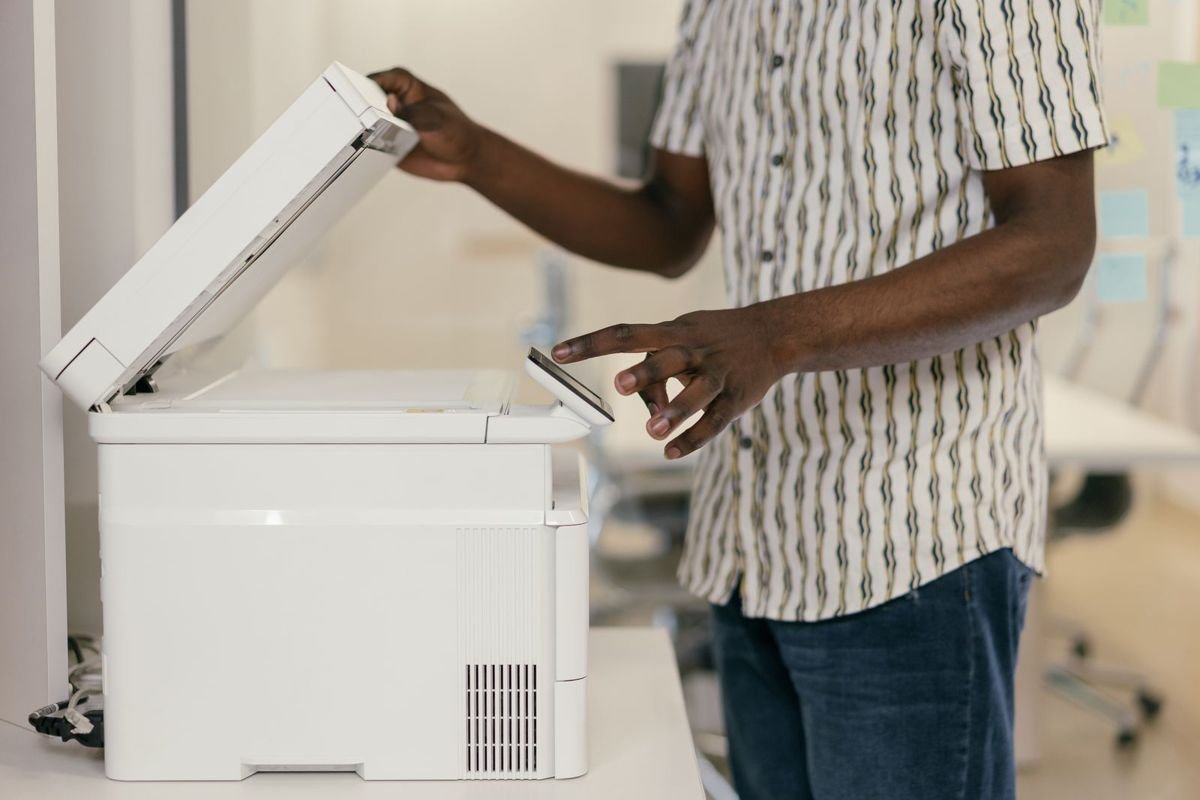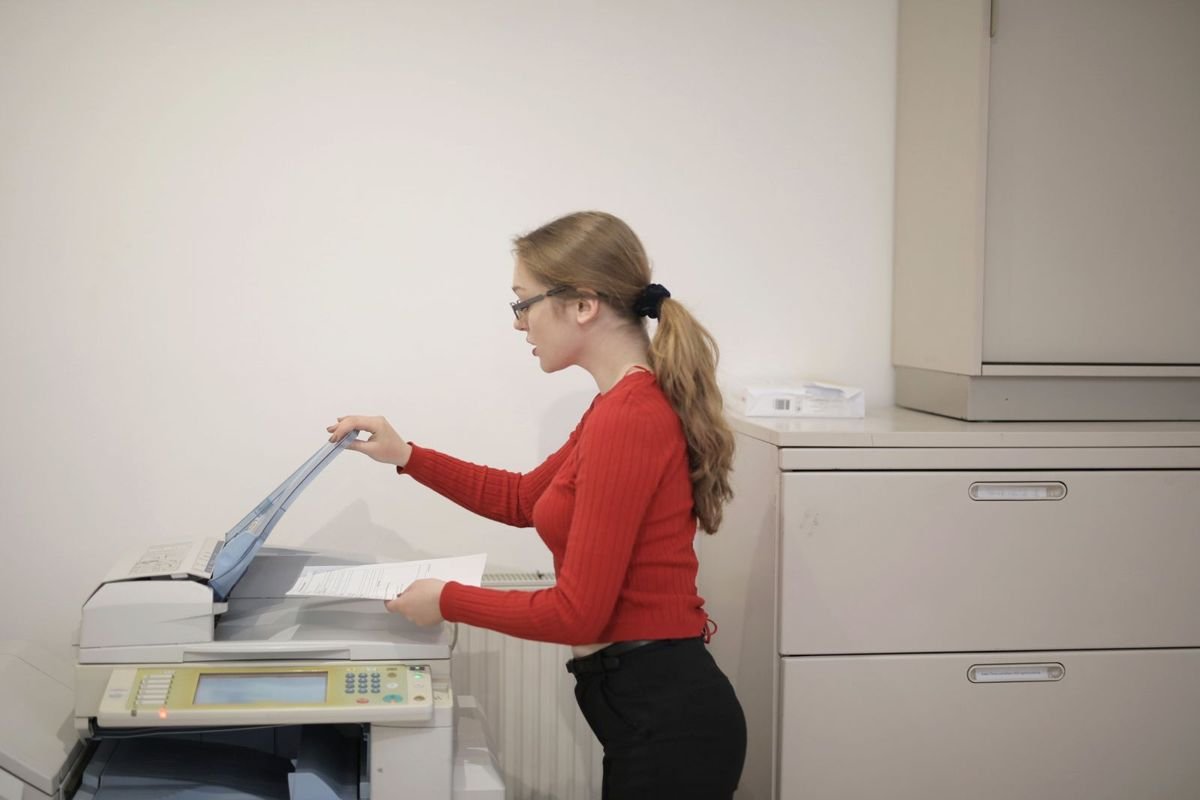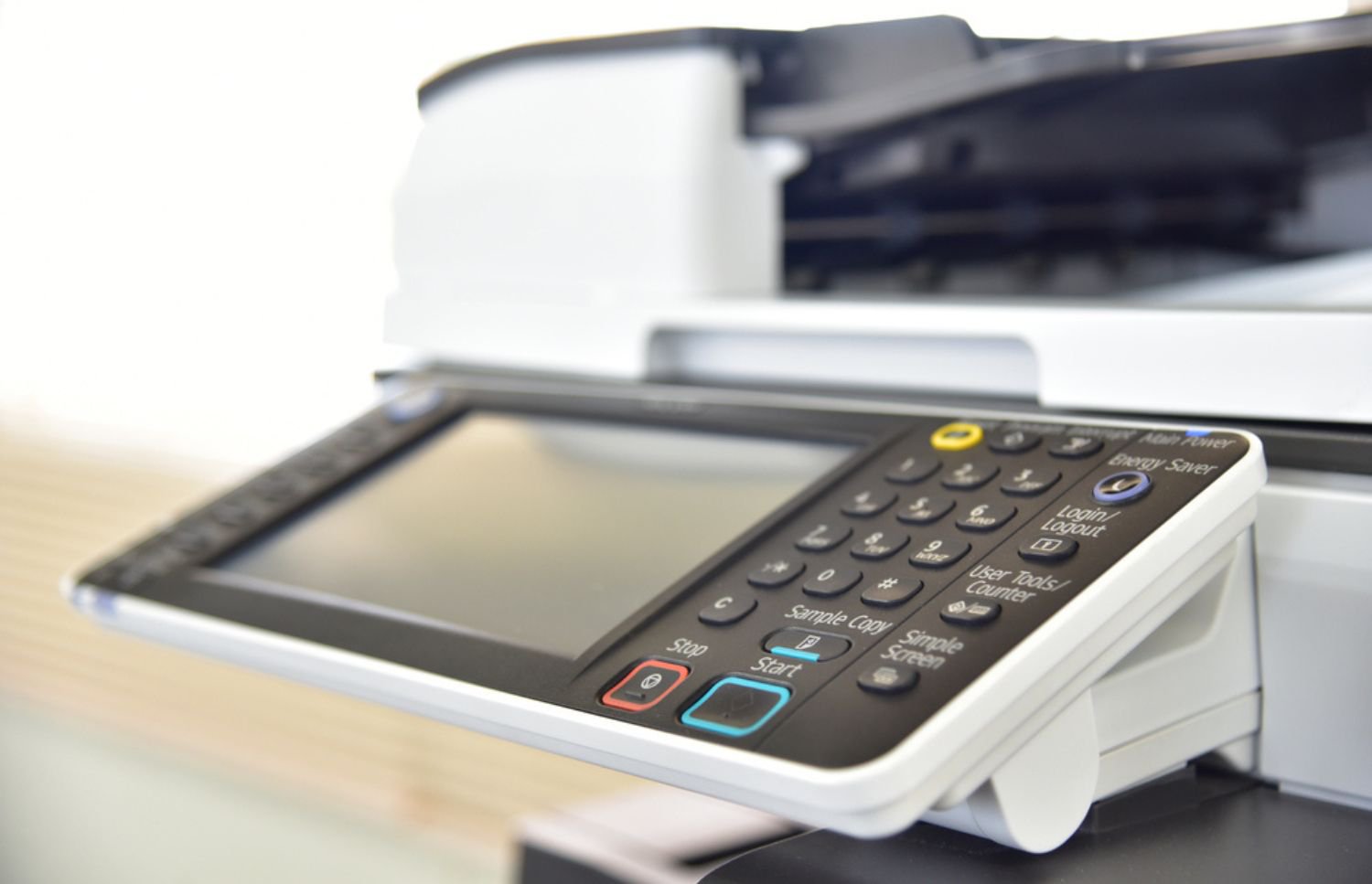
A printer stops in the middle of a job, the display shows a paper jam message, and a line of coworkers forms behind it. The urge is to grab the sheet and yank, but that is how a one-sheet problem turns into a torn page, a bent part or a service call. This guide explains how to fix printer jam problems safely in a few minutes, using steps that hold across brands, general tips from HP, Epson, Canon and Brother, and a clear point where calling for help is the better move. It also looks at why jams keep returning in offices that print all day, and how a managed print services program keeps a whole fleet of devices watched and maintained. This guide explains how to fix a printer jam safely.
Doors, trays and menus vary by model, so treat what follows as the general pattern and let your printer's own screen prompts or manual fill in the details for your machine.
Safety first: what to do before you reach inside
Follow your printer's power instructions. Check the display or manual before opening the machine. Some models require you to switch off and unplug the power cord. Others require a cooling period while the internal fan runs. Never assume the same procedure applies to every printer.
- Power off and unplug the printer before reaching inside. HP says you must disconnect the power cord before reaching inside the printer to avoid injury or electric shock.
- Pull the paper slowly, with both hands, so the sheet comes out whole.
- Do not use tweezers, pliers or other sharp tools. HP's guidance is to avoid sharp objects when removing a jam.
- Watch for torn scraps. A small piece left behind can cause the next jam.
- Let the machine cool. Brother notes that internal parts can be extremely hot right after printing.
However, certain Brother laser models instruct users to leave the machine switched on for 10 minutes while the internal fan cools hot components. Follow the instructions for your exact model rather than assuming every printer works the same way.
How to Fix a Printer Jam Step by Step
The sequence below works for most office printers and copiers. It is written so that someone who has never opened the machine can follow it without guessing.
Seven steps to clear a paper jam
- Pause the line. Tell people the printer is down and send urgent work to another device so nobody keeps pressing Print.
- Follow the manufacturer's power instructions. Check the printer screen or manual before opening the machine. Switch it off and unplug it if instructed. If your model requires the internal fan to run during a cooling period, wait for the full recommended time before touching internal components.
- Allow the printer to cool if required. Some models have hot internal components after printing. Follow the cooling instructions in your printer's manual before reaching inside.
- Open the doors or trays your printer's screen or manual points to. Look for the visible edge of the sheet.
- Pull the paper out slowly with both hands. Steady, even pressure is better than a quick tug. Canon says to pull slowly so the paper does not tear.
- Check for scraps and for a second jam. HP says jams can occur in multiple areas, so if the first area is clear, keep checking the next one until you find the paper. Epson's guidance is to remove any paper inside, including torn pieces.
- Close everything, plug in, and restart. Make sure each cover and tray is fully seated, then reprint the jobs that were canceled.
If the jam message stays on after the paper is out
HP says a printer can report a paper jam even when no paper is stuck, and its support steps cover both real and false jams. If the message remains, recheck every door and tray, confirm nothing is left in the paper path, and follow the on-screen prompts. If your computer instead shows a message such as "printer driver is unavailable," that is a different kind of problem from a paper jam: it points to the driver, the software that lets a computer talk to the printer. If the machine keeps showing the same jam after two careful passes, stop there and move to the section on calling a professional below. For other feed symptoms, our guide to printers that print blank pages covers the next set of things to check.
Brand tips for HP, Epson, Canon and Brother
The notes below come from each maker's own support pages. Several of those pages were written for specific models, so read them as each company's general guidance and rely on your printer's screen or manual for exact steps.
HP
HP's guidance is to disconnect the power cord before reaching inside, to pull jammed paper with both hands so a whole sheet does not tear, and to keep checking other areas if the first one is clear. HP also warns against tweezers and needle-nose pliers.
Epson
Epson's WorkForce guide tells users to follow the instructions on the printer's screen to clear the jam, and not to touch the flat white cable inside the printer when lifting the scanner unit. Another Epson support page says to remove any paper inside, including torn pieces.
Canon
Canon's PIXMA guidance is to hold the paper and pull it out slowly so it does not tear. For a deep jam, it says to turn off and unplug the machine first. It warns that a torn sheet may leave a piece inside, and not to touch the clear film inside, since contact can damage the machine.
Brother
Brother's guidance for inkjet machines is to unplug the machine because the print head may move and injure a hand. For laser models, Brother says to use both hands to pull the jammed paper out slowly, and to wait because internal parts are extremely hot after use.

Why Printer Jams Keep Coming Back in Busy Offices
When the same machine jams again a week later, the stuck sheet may be a symptom rather than the cause. The list below is a set of things worth checking, not a diagnosis.
What to check first
Start with the paper. Check whether it is damp, curled, wrinkled or unsuitable for your printer. Next, inspect the tray. Make sure it is not overfilled and that the paper is loaded evenly.
Room conditions can also matter. Very high or low humidity may contribute to paper-feed problems. Finally, examine the pages printed just before the jam. Smudges, skewed sheets or failed paper pickup may indicate worn feed rollers. A technician should inspect and replace worn parts.
How to prevent repeat jams
When a printer jams repeatedly, the stuck sheet may be a symptom rather than the cause. Start by checking the paper, tray and room conditions. These simple checks can help identify common problems before you call a technician. Prevention comes down to routine. Keep paper in its wrapper until it is needed, load only as much as the tray is designed to hold, and use the paper type your manual lists. Write down which printer jammed and when, because a pattern in one machine tells you more than a single event. Offices with several printers benefit most from keeping that log in one place. The cost of a stalled device adds up quickly, as our article on what office equipment downtime costs explains. These simple habits can help prevent a printer jam from happening again.
How on-site repair and maintenance cut down on repeat jams
On-Site LaserMedic is a printer repair and managed print services provider whose certified technicians diagnose and repair high-volume printing devices at the customer's location. The company describes its Preventative Printer Maintenance program as one that minimizes downtime, which matters for jams because worn parts and slow-building problems are easiest to catch before the device stops mid-job. The company reports a 98.6% first-time fix rate for its repairs, a figure that comes from the company itself.
For offices with more than a couple of machines, managed print services add a monitoring layer. The company says it evaluates the existing printer fleet, recommends device placement and sets up monitoring tools, with alerts that notify you when toner is low, paper needs refilling or service is required. That means the person at the front desk is not the only early warning system. The company also offers a free print security assessment as part of managed print services.
When to stop troubleshooting and call a professional
There is a point where another attempt does more harm than good. Stop and call a technician if the jam message returns right after you clear it, if a torn piece is visible but out of reach, if a part looks bent or loose, if the printer asks you to touch something the maker warns against (such as the cables and film noted above), or if the same machine keeps jamming even after careful clearing and a fresh stack of paper. A printer that jams repeatedly is telling you something about its parts or its setup, and removing sheets will not fix that.
Stopping early also protects the machine and your hands. If you have followed the safety steps and the printer still will not clear, leave it unplugged and arrange a service visit.
Get your office printers maintained by technicians
If your office is tired of watching the same device stall mid-job, On-Site LaserMedic can look at how your printers are set up and maintained. You can read about the full program on the managed print services page or contact the team to schedule a free assessment or speak with a specialist.