Connecting an HP printer to WiFi allows employees to print wirelessly from desktops, laptops, and mobile devices without relying on USB connections. Whether you're setting up a new printer or reconnecting a device after a network change, understanding how to connect an HP printer to WiFi can help reduce downtime and improve office productivity.
Enterprise desktop environments require constant communication between office computers and shared printing hardware. Simple configuration errors can stall daily administrative tasks across multiple corporate teams. Therefore, structured installation methods keep print equipment operating smoothly without regular IT interventions.
How to Connect an HP Printer to WiFi
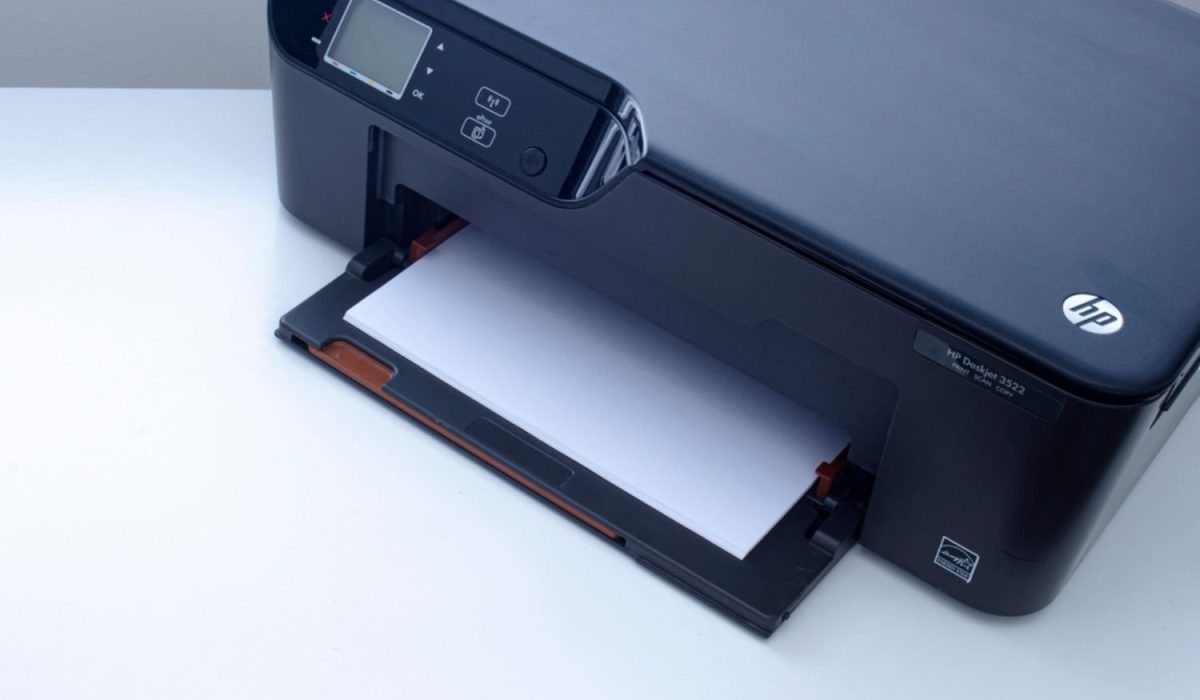
Most HP printers can be connected to a wireless network using the printer's built-in wireless setup tools. Follow these basic steps:
1. Turn on the HP printer and place it near your wireless router.
2. Open the printer's control panel and navigate to Wireless Settings.
3. Select Wireless Setup Wizard.
4. Choose your WiFi network from the available list.
5. Enter the network password.
6. Wait for the printer to establish a connection.
7. Print a network configuration page to verify connectivity.
Once connected, computers and mobile devices on the same network can access the printer without requiring a USB connection.
Preparing Network Settings Before Setup
Stable wireless connections demand a solid local network infrastructure prior to device deployment. Specifically, administrators must verify the enterprise router broadcasts a dedicated network frequency band. Dynamic network security protocols can sometimes block new devices from joining corporate subnetworks.
Network passwords and router credentials should remain readily available during initial hardware configurations. Meanwhile, signal strength requires verification near the intended workspace location before starting installation steps. Proper wireless office printing configurations help clarify standard IP assignment procedures for technical staff.
Disconnecting active VPN software temporarily during setup prevents IP address allocation conflicts later. Furthermore, office routers with strict firewalls need specific port permissions for print server communication. Knowing how to connect HP printer to WiFi streamlines immediate workstation integration procedures.

How to Connect HP Printer to WiFi via Touchscreen
Modern touchscreens provide direct access to embedded network setup wizards for quick configuration. For example, technicians should locate the wireless icon to initiate network discovery options. Selecting the primary corporate network name displays the access prompt for system authentication.
Entering the correct network passphrase allows the device to request a local IP address. Additionally, confirmation screens indicate successful connectivity once authentication protocols clear the router. Printing a network configuration report confirms successful subnet assignment for office use.
Comparing these options with standard multi-brand wireless printer setups reveals consistent connectivity protocols. On-screen prompts guide operators through automated network verification tests after entering security passwords. However, mastering how to connect HP printer to WiFi ensures smooth touchscreen navigation.
Utilizing Wireless Setup Software and Computer Settings
Desktop management software offers an alternative approach when built-in control screens lack responsiveness. System administrators can push network profiles from workstations using full driver packages. For instance, USB connections temporarily transfer encrypted Wi-Fi credentials to target printing equipment.
In addition, pushbutton setup provides streamlined pairing options on compatible network routers. Holding the wireless button on non-touchscreen hardware activates standard pairing discovery cycles. Standardized commercial wireless printing steps demonstrate similar push-button hardware integration concepts across environments.
Automatic installer tools automatically locate local hardware operating within proximity settings. Understanding how to connect HP printer to WiFi simplifies driver installation across network workstations. Software installation routines finalize driver dependencies across corporate Windows and macOS workstations.
Key Steps to Resolve Connection Drops
Network dropping issues frequently stall productivity when print hardware becomes unreachable. As a result, technical teams must isolate connectivity failures to restore document production.
Learning how to connect HP printer to WiFi involves executing crucial diagnostic steps:
- Restart local networking routers and printer power modules to refresh active IP bindings.
- Verify enterprise firewall rules permit necessary printing protocols through assigned corporate ports.
- Update device firmware versions through official manufacturer portals to eliminate software bugs.
- Reassign static IP addresses to prevent DHCP lease expiration errors during operation.
- Reposition wireless access points closer to office hardware to maintain strong signals.
Systematically testing network responses isolates underlying hardware faults from local router misconfigurations. Routine infrastructure maintenance mitigates recurring wireless signal dropouts across active office environments.
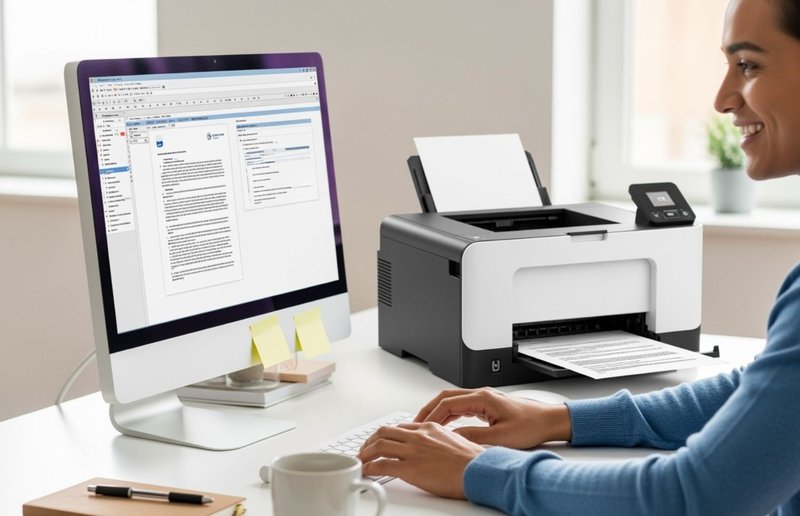
How to Connect HP Printer to WiFi for Mobile Office Printing
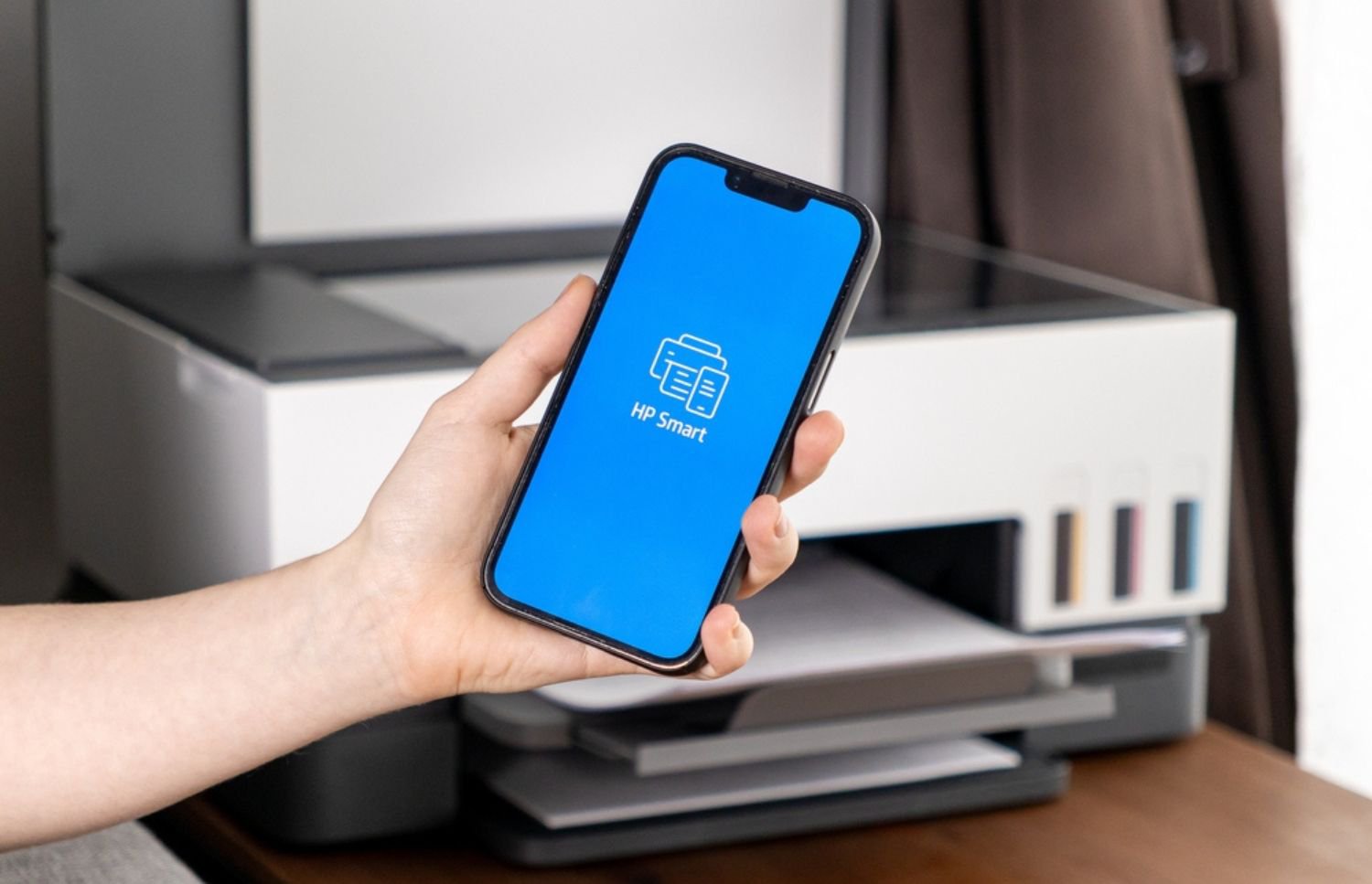
Mobile device integration streamlines printing demands for modern remote employees and visitors. Indeed, network administrators can enable direct Wi-Fi protocols for wireless smartphone printing requests. Mobile printing options allow staff members to transmit documents without computer workstations.
Dedicated mobile print applications automatically detect configured network equipment operating nearby. Moreover, secure authentication protocols protect sensitive corporate documents submitted through mobile network channels. Implementing secure mobile device integration details optimal tablet connectivity options for busy teams.
Isolated guest networks maintain security while granting temporary print permissions to guests. Similarly, AirPrint and Mopria services provide native printing functionality without installing additional drivers. Knowing how to connect HP printer to WiFi supports heavy mobile document queues.
Need Help Setting Up Business Printers?
Connecting a printer to WiFi is usually straightforward, but larger office environments often require additional configuration, security settings, print management software, and ongoing support. Businesses with multiple printers can benefit from professional setup and ongoing monitoring to reduce downtime and improve productivity.
On-Site LaserMedic provides managed print services, printer maintenance, printer leasing, mobile printing solutions, and support for HP, Xerox, and Lexmark printer environments. Whether your organization needs help connecting a single printer or managing an entire print fleet, professional support can help ensure reliable performance and secure document workflows.
Optimizing Enterprise Print Infrastructure
Connecting workplace hardware correctly is only the initial step toward seamless operations. In contrast, unresolved connectivity issues and unmanaged print fleets eventually strain corporate IT budgets. Understanding how to connect HP printer to WiFi provides a solid operational foundation.
If your HP printer frequently disconnects from WiFi, requires ongoing maintenance, or your organization manages multiple networked printers, On-Site LaserMedic can help. Our team provides printer repair, managed print services, equipment leasing, and ongoing support for HP, Xerox, and Lexmark devices to keep your office running efficiently. Contact On-Site LaserMedic to speak with experienced consultants regarding customized enterprise solutions.