Knowing how to print double sided saves paper and cuts costs while supporting sustainability in busy offices. Additionally, double‑sided printing (also called duplex printing) means the printer outputs on both sides of each sheet, so fewer sheets are used while keeping documents professional. Many workers avoid duplex printing because they assume it’s confusing or inconsistent across different office devices; however, understanding the basics makes it easier than expected.
Moreover, most corporate print environments include duplex capability, yet defaults vary across printer drivers, settings, and network configurations. Consequently, when teams don’t understand how to set duplex options, inefficient habits form, and costs rise. Therefore, taking time to walk through common steps and pitfalls helps make duplex printing dependable for any office.
What Double‑Sided Printing Really Means for Office Teams
Double sided printing uses both faces of paper to deliver full‑page content and can cut office paper usage by nearly 50 %, which supports sustainability goals alongside cost savings. Consequently, offices adopt duplex printing because it reduces consumable waste while aligning with operational priorities. Far from being a simple tactic, efficient duplex output fits into broader strategies for modern print workflows.

Furthermore, many organizations find that optimizing print environments requires tools that monitor and enforce printing behavior. Print management software helps monitor and optimize your print environment. This type of software is key to reducing waste and improving consistency across teams.
As a result, when duplex settings are enabled correctly, teams spend less time sorting printed materials and more time on productive work. In offices increasingly focused on measurable productivity, understanding how to print double sided ensures every saved sheet and reduced manual step matters.
Step‑by‑Step: How to Print Double Sided from Any Device
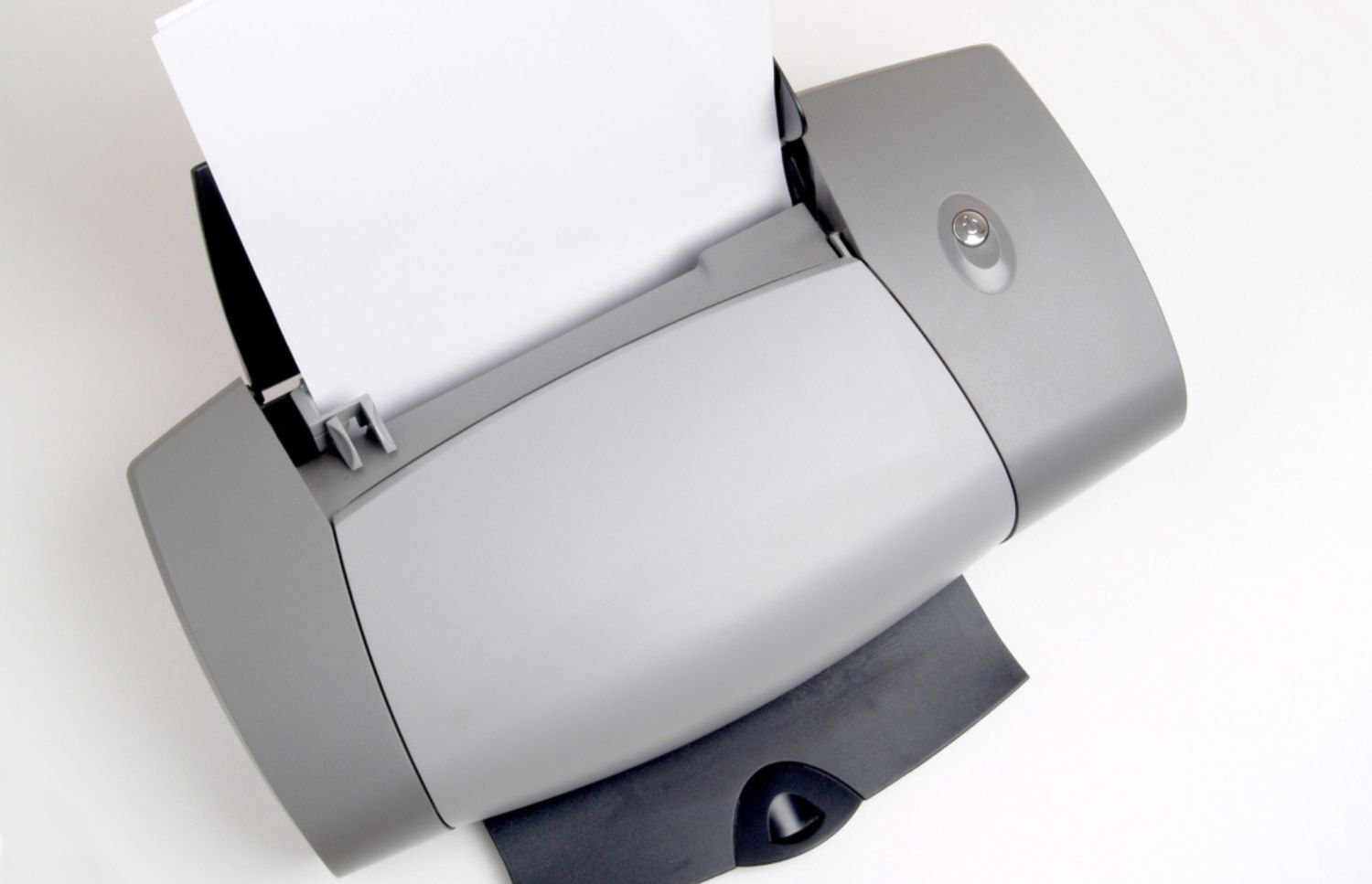
First, verify that the printer supports duplex printing and that the driver installed on your workstation recognizes that feature. Most modern multifunction devices include automatic duplex units; however, some older or entry‑level devices require manual flipping or single‑pass duplex trays.
Next, open the print dialog from whatever application you’re using and select the correct printer. Within the printer preferences, you will typically find options labeled “Two‑Sided Printing,” “Duplex,” or similar wording. Choosing the appropriate orientation, such as “Flip on Long Edge,” ensures pages turn properly when bound. Additionally, previewing the job before printing can prevent costly errors.
Finally, confirm that your print settings, especially default quality and media type, don’t conflict with duplex mode. Correct configuration ensures how to print double sided works reliably and helps every job come out exactly as expected, removing guesswork for teams across departments.
Printer Configurations and Network Variations
Printer brands and models differ significantly in how they approach duplex options and driver interfaces. For instance, some devices label duplex settings clearly in their menus while others hide them deeper in driver dialogs. Therefore, knowing how each brand handles double sided options avoids frustration and wasted jobs during busy workdays.
Moreover, proper network configuration makes a difference. A network printer connects directly to your office network, allowing multiple devices to print without a direct connection. These shared devices often accept centralized configurations, which can propagate duplex defaults across the fleet.
Additionally, differences in operating systems can change how defaults behave. To avoid inconsistency, many IT teams deploy standardized print drivers or centrally managed print queues so that everyone knows how to print double sided through a familiar, predictable interface.
Frequent Glitches That Disrupt Double Sided Printing
Even when the feature is available, common issues sometimes interrupt duplex jobs, especially incorrect page orientation or collation mix‑ups. Therefore, checking orientation settings (long edge vs short edge) and collation options ensures jobs print in sequence and saves users time on manual sorting.
Collation becomes especially important for multi‑copy jobs. In double sided printing, this guarantees that both sides of each page align properly, supporting professional presentation and readability. Ensuring the correct sequence substantially reduces reprints and organizational errors.
Common duplex printing issues include:
- Incorrect page orientation – long edge vs short edge settings may cause pages to flip incorrectly.
- Collation errors – multiple copies may print out of sequence without proper settings.
- Paper jams – misaligned duplex paths or thick media can trigger frequent jams.
- Driver resets – updates or device changes may revert duplex to single‑sided mode.
- Low toner or maintenance issues – worn parts can disrupt automatic duplex feeding.
Printer drivers sometimes revert to single‑sided mode after updates or device changes. Consequently, teams may think how to print double sided isn’t working when the driver simply reset to default. Additionally, addressing these issues proactively reduces downtime and improves overall office efficiency.
Why Standardizing Double Sided Printing Helps Every Enterprise
Standardizing duplex printing across every device in an office drives consistency and simplifies training. Consequently, once users know what to expect on any printer, they avoid wasted pages, misprints, and unnecessary helpdesk tickets. Standard defaults also make it easier for departments to forecast paper and toner usage for budgeting.

Moreover, embedding duplex printing into broader document workflows enhances office efficiency. Efficient document storage plays a key role in a smooth print workflow. When documents are organized and easy to find, unnecessary print jobs decrease, and double sided usage becomes more consistent.
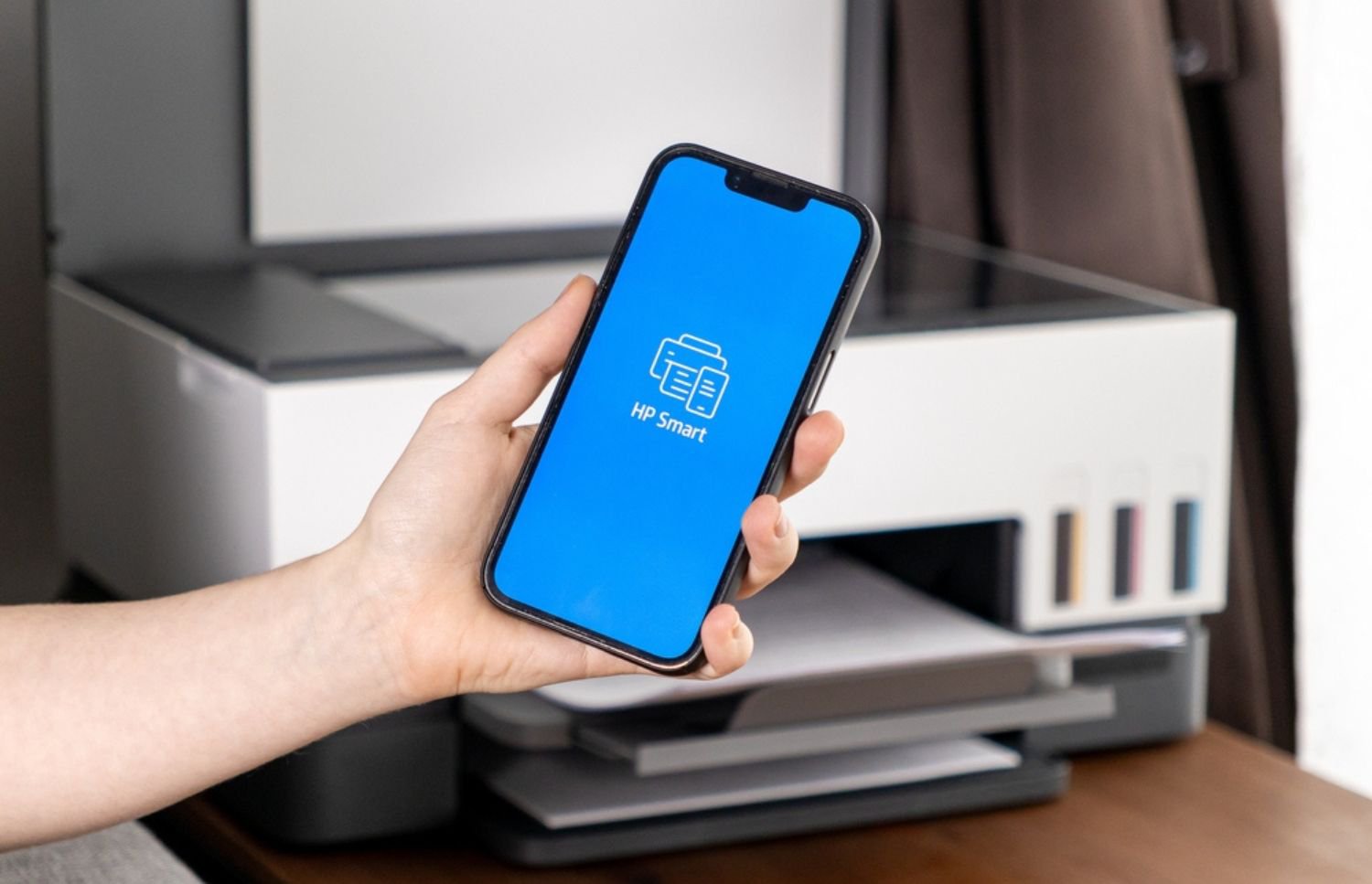
Finally, many offices now leverage mobile printing options. Mobile printing solutions enable users to send print jobs from any device, often without needing a wired connection. This flexibility supports hybrid workforces and still enforces duplex defaults when correctly configured.
Create Consistency Around Duplex Printing
Understanding how to print double sided equips office workers with a simple but powerful tool to cut waste and improve productivity. Once you recognize how your specific devices handle duplex settings and why orientation matters, printing becomes smoother and more predictable. When duplex output is consistent, staff spend less time fixing print jobs and more time on meaningful work.
Standardized duplex defaults reduce paper consumption, improve your organisation’s sustainability posture, and create a repeatable, reliable printing experience. Moreover, offices that invest in managed print best practices often see fewer support calls and lower overall costs as print habits improve over time. To streamline duplex printing across your entire printer fleet and ensure reliable, consistent output for every user, contact On‑Site LaserMedic for expert support.