Keeping printers ready without interruption requires understanding how to check ink levels on HP printer devices and performing routine diagnostics regularly. When supplies unexpectedly run out, employees experience delays, which can disrupt critical projects and deadlines. Implementing simple monitoring routines ensures office productivity remains uninterrupted while reducing avoidable stress for IT teams.
Many businesses rely on HP printers and multifunction devices to handle essential daily document output efficiently. Proactively checking consumables and reviewing device health prevents costly downtime and workflow interruptions. Furthermore, quick diagnostics allow teams to anticipate problems before they escalate, saving both time and resources in the long term.
Why Monitoring Ink Levels Matters in an Office Setting
Even if a printer appears operational, low ink or toner can lead to faded prints, slow processing, or failed jobs. Frequent interruptions reduce productivity, especially during peak business hours. Unmanaged print environments may experience up to 30 % higher consumable waste when supply checks are delayed or unnecessary cartridge replacements occur.

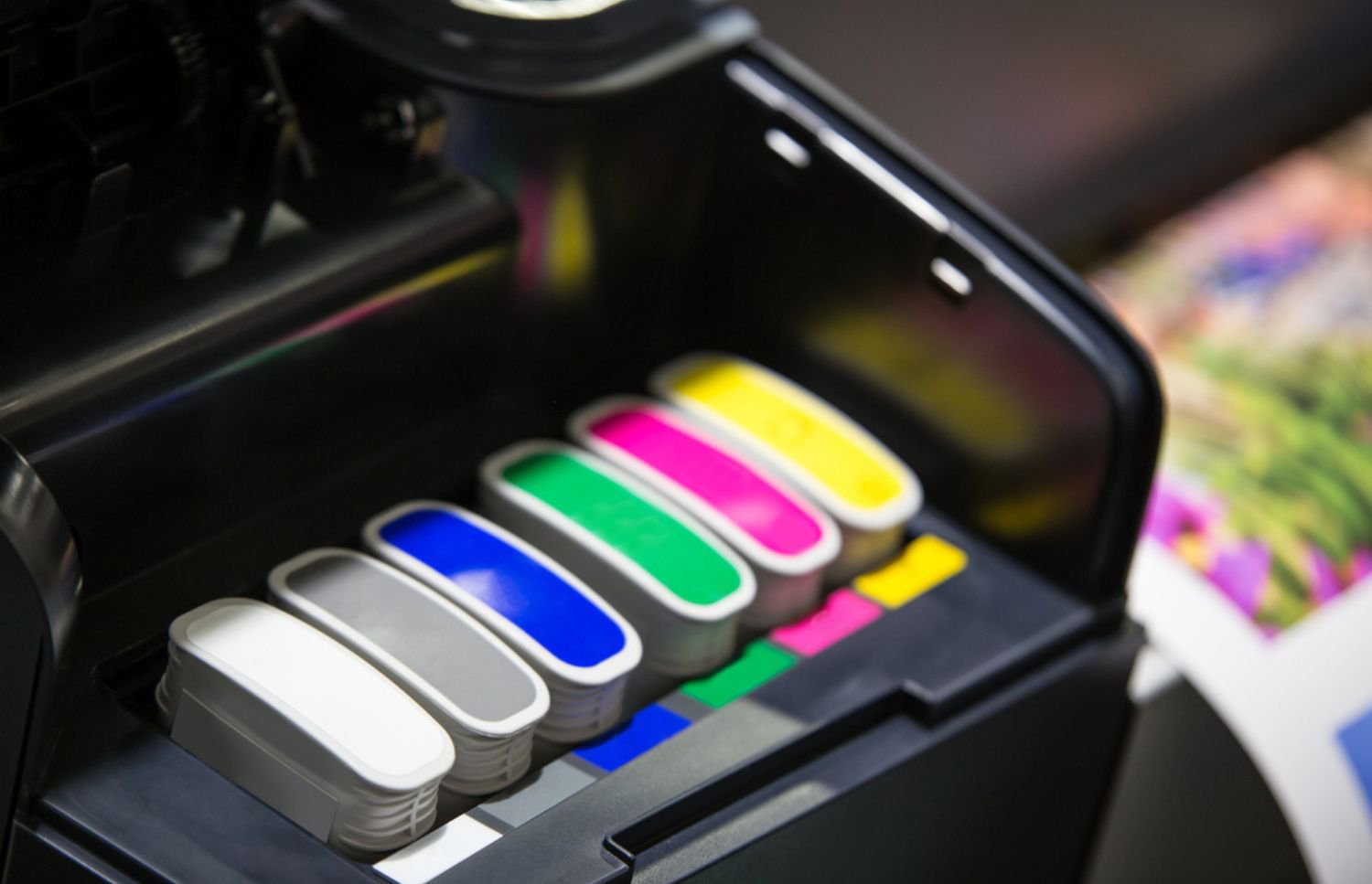
Modern HP devices display estimated ink levels, helping administrators plan replacements before shortages occur. It is common that printers will pause output unexpectedly when cartridges appear empty, even if small amounts remain. Visual indicators allow maintenance staff to prepare proactively, avoiding last-minute procurement issues. This is an essential step for understanding how to check ink levels on HP printer and ensures devices remain ready during critical office periods.
Treating supply monitoring as part of routine maintenance improves operational efficiency. Waiting for users to report issues often leads to reactive troubleshooting rather than strategic planning. Printers may go offline unexpectedly, sometimes because the printer is not responding, or a driver issue prevents communication, which can stall operations.
How to Check Ink Levels Directly on an HP Printer
HP printers often include a control panel that allows users to view ink and toner levels without additional software. Typically, a menu labeled “Ink/Toner Levels” or “Supplies” provides a graphical overview of each cartridge’s status. Some devices display small icons showing exactly which color is low, helping staff act before output suffers.
Embedded web servers on most HP models provide estimates of remaining ink, enough to schedule replacements without disrupting office tasks. In some instances, printers may stop printing altogether when one cartridge is critically low, forcing teams to pause operations. Monitoring these readouts proactively ensures a smoother workflow and avoids unnecessary downtime.
Certain HP LaserJet and Smart Tank models feature transparent reservoirs for quick visual inspection. One common printer problem is that blank pages appear unexpectedly, often because the print cartridge may not be seated correctly, or the printhead requires cleaning. Physical checks complement software diagnostics to maintain a consistent print schedule.
Checking Ink Levels Through HP Software or System Tools
Software tools offer centralized methods to check how to check ink levels on HP printer devices across a network. HP Smart connects via Wi‑Fi or USB and displays estimated ink levels for multiple printers in one interface. This allows IT staff to see which devices need attention without walking across offices.
On Windows, navigating to “Printers & Scanners” and accessing the printer’s properties panel shows estimated supply levels for each cartridge. Some software dashboards display remaining pages and alert administrators to potential low supplies before output is affected. Printers might go offline if the device driver is outdated or if a network connection is interrupted.
Device management dashboards consolidate multiple HP printers in one view, making fleet oversight easier. Integrating collate settings correctly ensures multi-page documents print in order and avoid unnecessary reprints. Centralized monitoring reduces errors, saves time, and maintains consistent output.
Other Quick Diagnostics Offices Should Be Aware Of
Monitoring ink levels is only part of maintaining printer reliability. Quick diagnostics, such as reviewing error logs, print quality reports, and connectivity, catch issues early. Test pages or calibration checks often reveal clogged nozzles or misaligned cartridges before print output suffers.
Other useful checks include:
- Paper feed and roller conditions: Prevent misfeeds and jams that could slow down operations.
- Firmware and driver updates: Ensure devices communicate correctly and avoid unexpected offline issues.
- Network connectivity: Confirm printers are reachable by all users to prevent queued jobs from stalling.
- Error log review: Identify recurring issues before they escalate and disrupt workflow.
Regular quarterly checks reduce unexpected breakdowns by as much as 40 %. Proactive diagnostics ensure consistent output and improved efficiency across the office.
Why Manual Monitoring Becomes Inefficient at Scale
Small offices can manage supplies manually, but larger fleets require systematic oversight. Without centralized reporting, IT staff spend significant time verifying devices individually. Mistakes are common when multiple printers are involved, leading to delays in addressing low ink notifications. Understanding how to check ink levels on HP printer across multiple devices becomes critical in these environments to prevent downtime and maintain workflow consistency.

Centralized print management aggregates ink levels, performance alerts, and device logs across the network. Automating diagnostics removes the need for manual monitoring and reduces labor costs associated with reactive troubleshooting. Businesses that implement fleet oversight often see 20–25 % efficiency improvements in supply management and uptime.
Distributed offices that rely on users reporting low cartridge experience delays and inconsistencies. Centralized monitoring ensures alerts reach administrators in real time. Strategically selecting printers that handle high-volume output while monitoring supplies proactively supports office productivity and reduces unplanned downtime.
Meaningful Conclusion: From Routine Checks to Seamless Productivity
Routine checks like how to check ink levels on HP printer and performing other diagnostics are essential to keeping printers functional and consistent. Proactive monitoring reduces wasted supplies, maintains print quality, and prevents interruptions for office teams. Strategically addressing potential issues enhances workflow efficiency and overall device longevity.
Instead of manually tracking ink levels and performing diagnostics, a professional service can manage these tasks automatically. Managed print services monitor supplies, assess printer health, and perform preventative maintenance before issues affect output. To simplify printer oversight and reduce downtime, contact On‑Site LaserMedic for expert support and comprehensive managed print services.