Experiencing an offline printer can disrupt productivity and delay critical tasks in any office setting. The HP printer offline fix often begins with simple checks that prevent unnecessary downtime and confusion. Addressing this issue quickly ensures smooth operations and reduces frustration for employees and IT staff alike.
Understanding why printers go offline helps you prevent repeated interruptions and maintain a reliable workflow. Common causes range from network instability to outdated drivers, each requiring specific attention. Implementing the right troubleshooting steps provides a proactive solution rather than repeatedly reacting to problems.
Common Network Issues Explaining Why Is My HP Printer Offline
A common cause of printer offline issues involves simple connection problems that are easy to fix. Performing an HP printer offline fix often starts with checking whether the printer is powered on and properly connected. Loose cables or disconnected wireless connections can immediately stop printing tasks from processing efficiently.

Next, ensure the printer is on the correct network if it’s wireless. For wired printers, inspect Ethernet connections to confirm they are secure. Small adjustments, like unplugging and replugging the cables, can restore communication between the printer and computer quickly.
Always verify that power switches, surge protectors, and outlets are functioning correctly. In some offices, printers share circuits with other devices that might overload power sources. Simple verification steps save time before deeper troubleshooting is required.
How to Quickly Identify Why Is My HP Printer Offline
Sometimes an HP printer shows as offline even when it’s properly connected. A quick HP printer offline fix is manually setting the printer status to “online.” This ensures the system recognizes the printer as ready for new print tasks.
Steps to fix the issue:
- Check printer status: Windows users can go to Devices and Printers, and Mac users can check Printers & Scanners.
- Set the printer online: Manually adjust the status to “online” to restore communication with the computer.
- Restart your device: Rebooting the computer reinforces the printer connection and clears temporary glitches.
- Clear the print queue: Delete old or stuck print jobs, as they can block new jobs and cause offline errors.
Understanding these manual adjustments is essential when a printer is offline, helping users quickly restore normal operation without waiting for IT support.
Update Network Drivers and Reconnect
Outdated or corrupt drivers often cause printers to go offline unexpectedly. Ensuring all drivers are updated is an important part of an HP printer offline fix, which prevents recurring errors. Updating drivers can resolve compatibility issues between your printer and the operating system.
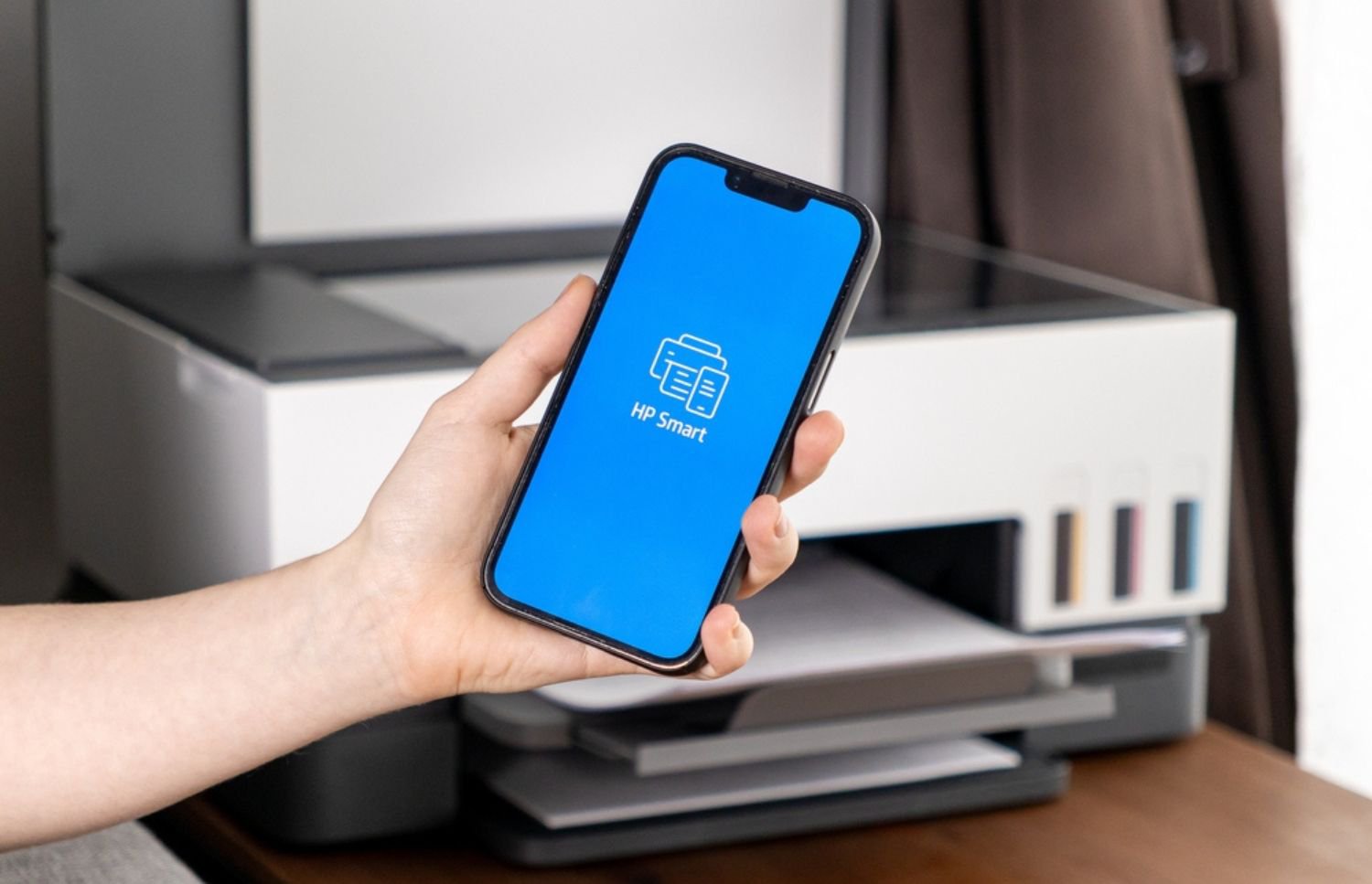
Reconnecting the printer through the HP Smart App can also reset communication pathways. The app simplifies network configuration, reducing human error in manual settings. It provides clear indicators if additional action is required to stabilize connectivity.
Regularly checking for driver updates ensures continuous printer functionality. Automatic updates are available in most operating systems, making this process straightforward. Maintaining current drivers reduces the likelihood of repeated offline problems. For additional flexibility in connected environments, businesses can also explore mobile printing solutions that support seamless printing from remote or hybrid devices.
Clear Any Stuck Print Jobs
Stalled print jobs are another frequent reason printers appear offline. A practical HP printer offline fix also includes clearing stuck print jobs from the queue immediately. Even one corrupted job can stop multiple printing tasks from processing correctly.
Access the print queue via system settings and cancel any stalled tasks. Restart the printer after clearing the jobs to reset its internal memory. This step ensures the printer recognizes new documents and resumes normal operation.
Scheduling routine checks of the print queue reduces repeated offline events. Offices with high printing volumes benefit from this simple maintenance habit. It minimizes interruptions while keeping teams productive throughout the day. Integrating document imaging technology and cloud integration further streamlines print management, allowing organizations to manage and process documents efficiently across connected systems.

Prevent Future Offline Problems
Even the most reliable printers can experience downtime without consistent upkeep. Preventive measures play a vital role in keeping devices connected, productive, and responsive during daily operations. By applying a proactive HP printer offline fix strategy, organizations can minimize disruptions and extend printer lifespan effectively.
Preventive Measures to Avoid Offline Printer Problems:
- Perform regular maintenance: Schedule cleaning of internal components and printer heads to avoid buildup that causes errors.
- Monitor network connections: Use tools that detect drops or slow response times to maintain seamless communication.
- Check toner and paper levels frequently: Prevent print queue interruptions caused by supply shortages.
- Educate users: Train staff on proper startup, shutdown, and troubleshooting steps to prevent repeated offline incidents.
- Update firmware and drivers: Keep all printer software current to eliminate compatibility or connectivity issues.
- Plan for peak periods: Schedule staggered maintenance for multiple printers to ensure continuous availability.
- Implement an electronic document management system: Simplify workflows and reduce strain on networked printers by managing digital files efficiently.
Consistent maintenance and proactive monitoring address root causes rather than reacting to each incident. These preventive habits not only reduce frustration but also prevent unnecessary IT support calls, ensuring a smoother and more dependable printing environment.
Smart Printer Solutions for Reliable Operations
Persistent offline problems may indicate deeper system or configuration issues that go beyond routine troubleshooting. A professional HP printer offline fix helps identify and resolve these underlying causes quickly. On-Site LaserMedic’s managed print experts assess, stabilize, and optimize entire printer networks to ensure continuous connectivity and performance. Their services keep businesses productive and minimize the risk of unexpected downtime.
With on-site diagnostics, proactive maintenance, and driver management, HP printers perform consistently. Organizations benefit from reduced delays, lower repair costs, and longer printer lifespan. Experts also provide tailored strategies for offices with high-volume printing or complex network environments.
Maintaining a well-monitored printer fleet safeguards workflow efficiency. It allows IT teams to focus on other critical business priorities. Talking to On-Site LaserMedic helps implement these solutions quickly and effectively.
Explore Section 179 Savings With On-Site Laser Medic. DISCLAIMER: Section 179 may offer tax advantages for qualifying equipment purchases. This information is for general awareness only and is not tax advice. Eligibility varies by business. Please consult your CPA or tax professional to understand how Section 179 applies to your specific situation.