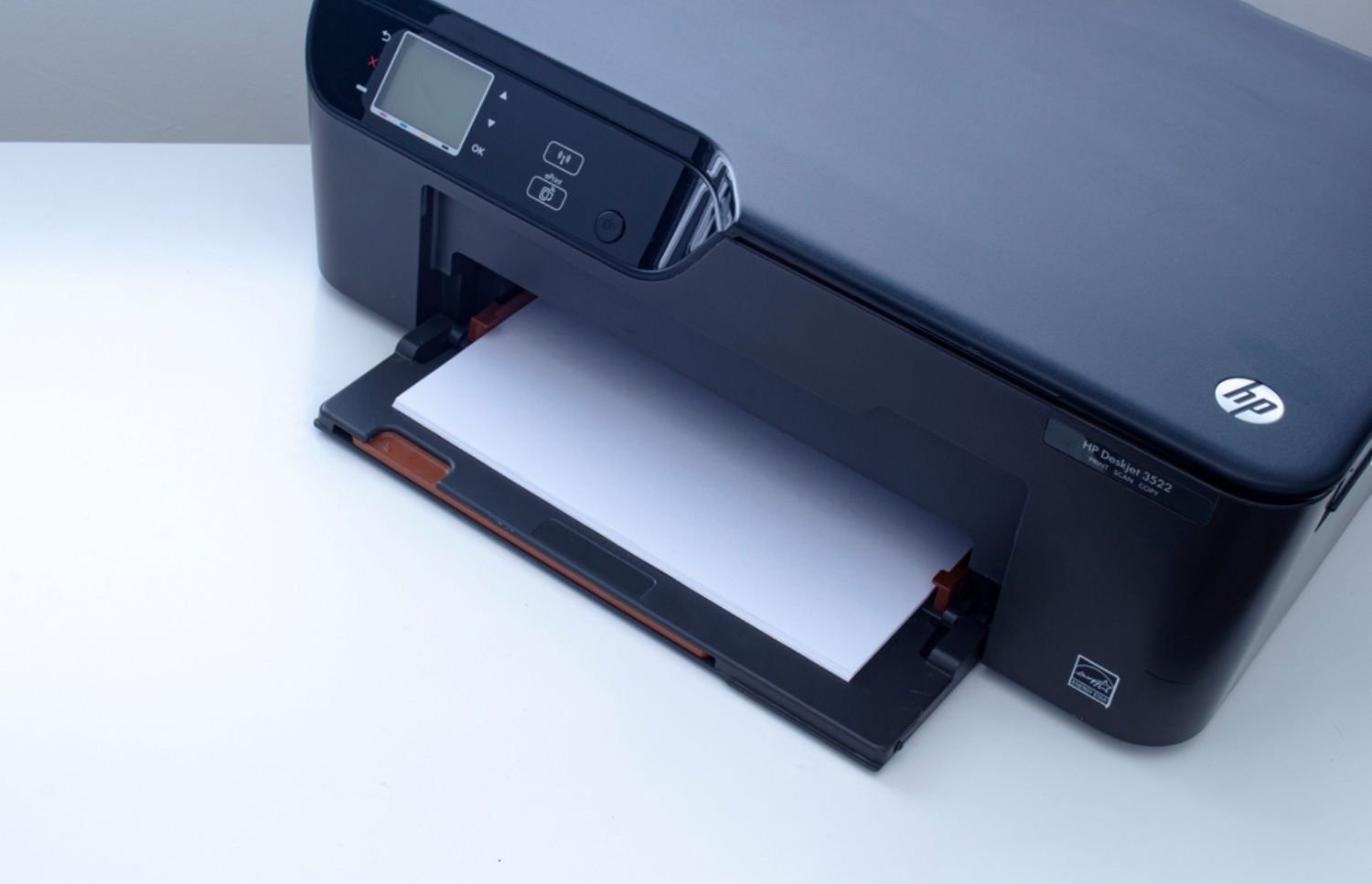
If your Epson printer printing blank pages interrupts your office workflow, you are not alone. Blank outputs often appear just before critical deadlines, causing wasted time, paper, and resources. Understanding causes and remedies can help teams restore productivity and maintain consistent print quality.
Unexpected printer downtime can lead to increased costs and workflow bottlenecks, making early troubleshooting essential. This article explains practical fixes for common issues so office users can quickly resume normal printing operations. Following these steps prevents wasted consumables and reduces reliance on emergency service calls.
Ink Cartridge and Print-Head Alignment Issues Causing Epson Printer Printing Blank Pages
One of the most frequent causes of Epson printer printing blank pages is empty, low, or improperly seated ink cartridges. When a cartridge is misaligned, the printer cannot detect ink, producing blank sheets. Ensuring cartridges are fully inserted and compatible prevents unnecessary printing errors.

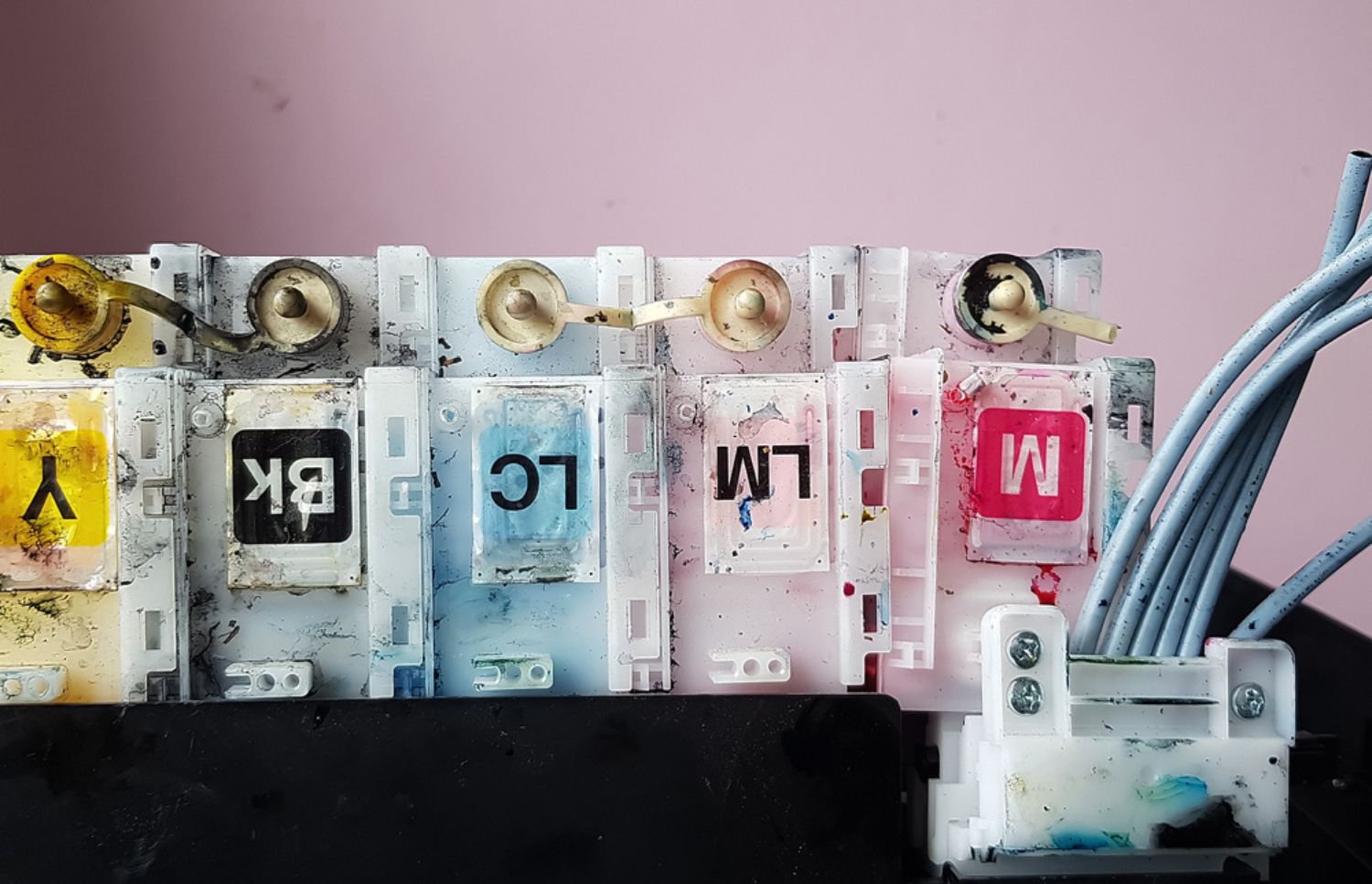
Clogged printhead nozzles also result in blank pages, especially if printers remain idle for long periods. Regular inspection and gentle cleaning help maintain uninterrupted printing performance. Residue buildup blocks the flow of ink, disrupting output quality.
Routine preventive maintenance reduces unexpected downtime and ink waste. Office managers should check cartridges weekly, particularly before high-volume print jobs. Proper alignment combined with regular head checks significantly improves reliability.
Cleaning Printheads and Cartridge Replacement to Fix Epson Printer Printing Blank Pages
Running built-in cleaning cycles helps resolve many Epson printer printing blank pages issues without professional intervention. Most Epson models, including those with new printer technology, include a utility to clear blocked nozzles, restoring ink flow efficiently. Multiple cleaning passes may be necessary to fully resolve the problem.
That said, manual cleaning is sometimes still required when automatic cycles fail. Power off the device, remove cartridges, and clean the printhead contacts with a lint-free cloth and distilled water. Using recommended cartridges ensures proper ink flow and avoids damage to sensitive printer components.
For heavy-use environments, scheduling periodic maintenance prevents recurring issues. Preventive care not only extends the printhead life but also reduces the frequency of emergency repairs. Proper cleaning routines maintain high-quality output for extended periods.
Driver, Software, and Firmware Issues
Software misconfigurations can cause printers to produce blank pages even when the hardware appears to function correctly. Outdated drivers or incompatible operating system updates may prevent print commands from reaching the printhead. Network-connected printers may also receive corrupted or incomplete print jobs, leading to output errors and confusion for users.
Regular diagnostic tests verify both software and hardware integrity to maintain consistent performance. Checking job queues and reinstalling printer drivers often restores normal operation without requiring hardware intervention. These steps are essential for resolving Epson printer printing blank pages and ensuring reliable office printing.
Test Pages, Diagnostics, and Workflow Verification
Running test pages provides immediate insight into printer functionality and ink flow. A successful nozzle-check confirms that the printer hardware is working, while continued blank outputs point to upstream issues. Routine diagnostics help isolate whether the cause is mechanical or software-related.
Monitoring print jobs and error rates is essential for office efficiency. Organizations can track downtime incidents and the frequency of issues like Epson printer printing blank pages to proactively address recurring problems. Establishing thresholds, such as less than 1% of total jobs generating blank pages, supports smoother operations.
Workflows also benefit from verifying print settings and job priorities. Ensuring correct paper type, print mode, and driver selection reduces avoidable errors. Regular validation, combined with integrating cloud printing solutions, keeps enterprise printing aligned with organizational productivity goals.

When to Engage Professional Support
If troubleshooting steps fail, it may be time to seek professional support for ongoing printer issues. Certain problems demand expert attention to prevent further disruptions. Examples include hardware failures, software conflicts, and high-volume printing challenges.
- Hardware degradation or worn printheads that prevent proper ink flow.
- Complex software conflicts or corrupted drivers affecting print jobs.
- High-volume printing environments needing optimized configurations and preventive maintenance.
Engaging professionals ensures that devices are thoroughly inspected, maintained, and restored to reliable performance. Structured service visits improve workflow efficiency and reduce the risk of recurring problems. Timely expert intervention helps resolve Epson printer printing blank pages and protects office productivity.
Maintaining Consistent Print Quality
Blank pages from an Epson printer do not have to disrupt office operations or waste valuable resources. Regular preventive maintenance, proper cartridge handling, driver updates, and workflow validation keep printers reliable and cost-effective. Tracking device performance and addressing issues promptly ensures uninterrupted productivity and reduces consumable waste.
When recurring issues with an Epson printer printing blank pages persist, consulting a specialized on-site print service can restore optimal performance. Contact On-Site LaserMedic to schedule maintenance and keep your enterprise printing reliable, efficient, and cost-controlled.
Explore Section 179 Savings With On-Site Laser Medic. DISCLAIMER: Section 179 may offer tax advantages for qualifying equipment purchases. This information is for general awareness only and is not tax advice. Eligibility varies by business. Please consult your CPA or tax professional to understand how Section 179 applies to your specific situation.