Many businesses ask, “why is my HP printer offline?” because it stops work and delays important documents. Often, network issues or misconfigured settings trigger this offline status unexpectedly. Therefore, understanding the root cause allows teams to resolve problems efficiently and prevent recurring interruptions.
Printer downtime can disrupt schedules, create frustration, and waste resources. Additionally, knowing common causes helps office staff troubleshoot quickly. Consequently, following a clear troubleshooting approach ensures printers function reliably in busy work environments.
Understanding the Offline Status for HP Printers
An offline printer cannot process print jobs until communication resumes. Consequently, documents remain stuck in the print queue, halting workflow. Therefore, office teams must recognize offline status to prevent unnecessary delays.
Network instability often triggers offline status, especially with Wi-Fi connections. Fluctuations in signal strength or temporary disconnections stop printers from communicating effectively. Addressing connectivity issues early keeps print tasks on schedule and prevents recurring problems.

Incorrect printer settings, such as wrong IP addresses or offline mode selection, also cause this problem. Checking device configuration ensures the printer communicates with computers correctly. As a result, verifying settings prevents repeated offline alerts and saves time.
Sometimes, multiple users on shared networks notice offline status inconsistently. Network congestion or bandwidth issues can interfere with printer connections, often leading teams to ask why is my HP printer offline. In these cases, checking connectivity settings and restarting the network equipment usually helps. Businesses focused on fixing printers can also review IP configurations or update drivers to restore stable communication.
Troubleshooting Network and Connection Issues
Network disruptions are one of the most common reasons users ask why is my HP printer offline. Ensuring stable connections and proper configurations helps restore communication quickly and keeps printers running efficiently. Consistent monitoring and timely adjustments prevent downtime and improve overall workflow reliability.
Key troubleshooting steps include:
- Check wired and wireless connections: Unplug and reconnect cables or Wi-Fi to re-establish communication between devices.
- Restart network hardware: Reboot routers, switches, or modems to refresh connections and clear minor glitches.
- Adjust firewall or VPN settings: Shared networks sometimes block printer signals; updating settings allows proper communication.
- Verify IP addresses: Conflicting or outdated IP configurations can disrupt connectivity. Resolving them restores online status.
- Focus on fixing printers proactively: Regular monitoring of network performance and prompt adjustments reduce recurring offline issues and ensure consistent productivity.
Software and Driver Considerations for HP Printers
Outdated drivers are a common cause when users ask why is my HP printer offline. Updating or reinstalling drivers ensures full compatibility with operating systems and restores communication. As a result, many offices quickly resolve offline issues through simple software updates.
Print queue errors can block document output unexpectedly. Clearing pending jobs ensures new tasks reach the printer correctly. After clearing queues, most users see instant resolution of offline status and improved reliability.
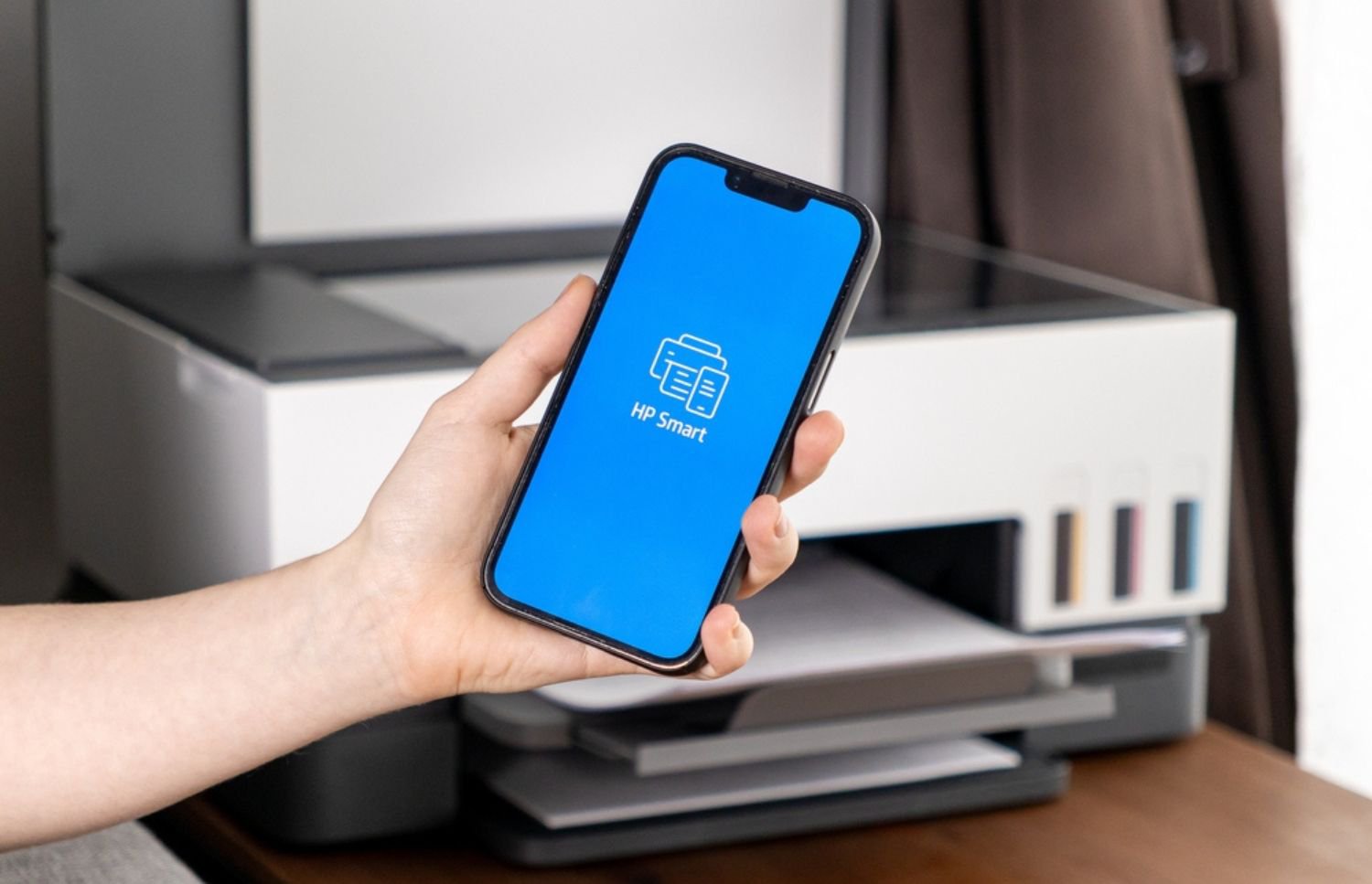
The Diagnose and Fix tool in HP Smart detects driver or software issues automatically. Running this tool helps identify hidden causes of offline alerts quickly. Use it when the printer is saying it's offline to pinpoint problems and restore proper communication between the printer and computer.
Software conflicts, including security programs or firewall settings, may stop communication. Temporarily disabling these programs often reveals the root cause. Once resolved, printers resume normal operation reliably without further interruptions.
Preventive Measures to Avoid Offline Printer Problems
Preventing printer downtime begins with consistent maintenance, network monitoring, and user awareness. Many offices experience disruptions because they overlook small issues that eventually cause communication failures. Addressing these factors early keeps devices efficient, reduces troubleshooting time, and prevents repeated cases of why is my HP printer offline.

Effective preventive measures include:
- Perform regular maintenance: Clean printer components and update firmware to prevent technical malfunctions and extend equipment life.
- Monitor network connections: Schedule routine connectivity checks to ensure all printers remain accessible and stable for every user.
- Implement an electronic document management system: Reduce unnecessary printing, minimize hardware strain, and streamline digital workflows for greater efficiency.
- Educate and train employees: Teach staff how to verify printer status and handle minor issues independently to prevent avoidable downtime.
- Review configurations regularly: Check IP addresses, driver versions, and access settings to ensure consistent communication between printers and computers.
When to Seek Professional Support for Offline Printers
Persistent offline status may indicate hardware or firmware problems. Professionals can perform diagnostics to pinpoint issues that are not user-serviceable. Therefore, expert intervention ensures the printer works reliably for daily tasks.
Managed print services help maintain uptime and reduce disruptions. Technicians provide preventive maintenance and on-site adjustments before small problems escalate. Learn more about professional support by visiting
Businesses often seek customized service plans when they encounter repeated cases of why is my HP printer offline. On-site experts monitor device performance closely and apply targeted solutions to maintain stable, consistent connectivity.
Keep Your HP Printer Online and Reliable
Understanding why is my HP printer offline helps teams troubleshoot quickly and reduce downtime effectively. Moreover, maintaining networks, updating software, and educating staff prevent recurring issues. Proactive management protects office productivity and supports smooth operations every day.
Professional services ensure minimal workflow interruptions when problems persist. On-Site LaserMedic specializes in on-site diagnostics and preventive maintenance for HP printers. Learn more at On-Site LaserMedic. to keep your printers online, productive, and reliable every day.