Ink replacement often seems straightforward, yet many printer issues trace back to rushed or incorrect cartridge changes. Knowing how to change ink in Epson printer models the right way helps maintain print quality, reduces error messages, and protects internal components that are costly to repair. When ink is replaced on time and handled correctly, Epson printers deliver consistent output and experience fewer interruptions.
Ink management is a maintenance discipline, not just a reaction to warning lights. The guide below explains the correct process for changing ink in Epson printers, outlines common mistakes, and shows why proactive ink replacement plays a critical role in long-term printer reliability.
How to Change Ink in Epson Printer Before You Begin
Preparation makes ink replacement faster and safer. Start by identifying the exact printer model and cartridge type. Epson printers use model-specific cartridges, and installing the wrong one can trigger recognition errors.
Turn the printer on before opening the cartridge compartment. Most Epson printers position the cartridge holder automatically when the device is powered, ensuring safe access. Keep new cartridges sealed until installation to prevent ink from drying out.
Have a clean, flat surface nearby and avoid touching cartridge contacts or nozzles. Proper handling during this stage reduces the risk of print quality issues after installation.
Step-by-Step Instructions: How to Change Ink in Epson Printer

The steps below apply to most Epson inkjet printers, including WorkForce and Expression models. Some prompts may vary slightly by model, but the overall process remains consistent.
Step 1: Access the ink cartridge compartment
- Open the scanner unit or ink access cover as directed by the printer. The cartridge holder should move into position automatically.
Step 2: Remove the empty cartridge
- Press the release tab on the cartridge and lift it out gently. Avoid squeezing or forcing it free.
Step 3: Prepare the new cartridge
- Remove the cartridge from its packaging and peel off the protective seal. Do not touch the ink outlet or electrical contacts.
Step 4: Install the new cartridge
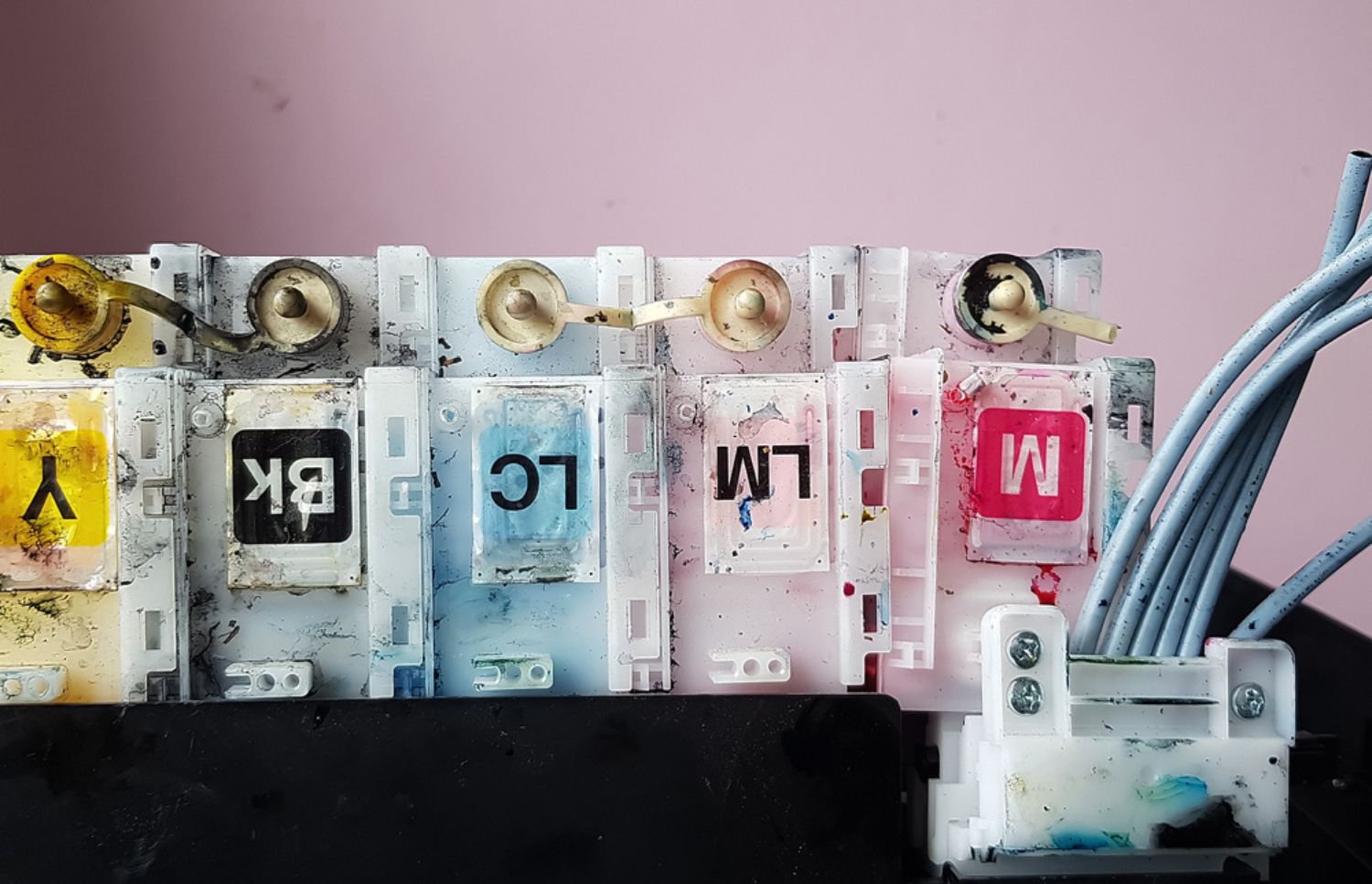
- Insert the cartridge into the correct slot until it clicks securely into place. Color-coded labels help ensure proper positioning.
Step 5: Close the compartment
- Lower the scanner unit or close the access cover. The printer will begin charging the ink system, which may take several minutes.
Step 6: Complete alignment if prompted
- Some Epson printers automatically perform alignment or request confirmation. Allow this process to finish to ensure accurate print output.
Following these steps consistently helps maintain clean prints and reduces the likelihood of cartridge-related errors.
Common Mistakes When Changing Ink in Epson Printers
Many ink-related problems stem from simple oversights. One frequent mistake is removing cartridges before the printer is ready. Interrupting the carriage movement can cause mechanical issues or misalignment.
Another issue involves skipping prompts or powering off the printer during ink charging. This can introduce air into the ink system, leading to clogs or inconsistent output.
Using incompatible or low-quality cartridges also creates long-term problems. While non-genuine cartridges may appear cost-effective, they often increase maintenance needs and reduce overall reliability.
Why You Need to Change Ink in Epson Printer Regularly
Ink does more than create images on the page. It supports proper printhead function and helps regulate internal temperature. Allowing cartridges to run completely dry increases the risk of overheating and permanent printhead damage.
Replacing ink before it is fully depleted helps maintain steady ink flow and reduces the need for aggressive cleaning cycles. These cycles consume additional ink and accelerate wear on internal components.
From an operational perspective, timely replacement prevents unexpected downtime and keeps workflows moving without disruption.
Keeping Ink Available and Replacing It Strategically
Running out of ink encourages rushed replacements that often lead to mistakes. Keeping spare cartridges on hand ensures replacements happen calmly and correctly.
Strategic replacement also improves cost control. Tracking usage patterns helps prevent overordering while avoiding emergency purchases that inflate supply costs.
Consistent availability supports predictable performance and reduces the frequency of service calls tied to preventable ink issues.

Managing Ink Across Multiple Epson Printers
As printer fleets grow, manual ink tracking becomes unreliable. Devices may be replaced inconsistently, and low-ink alerts can go unnoticed until printing stops entirely.
Centralized print management provides visibility across all devices. Automated monitoring tracks ink levels, forecasts replacements, and ensures supplies arrive before outages occur.
This approach reduces downtime, extends printer lifespan, and removes the burden of manual oversight from internal teams.
Turning Routine Ink Changes Into Long-Term Reliability
Knowing how to change ink in Epson printer models correctly is essential, but consistent performance requires more than proper technique. Keeping ink stocked, replacing it on time, and addressing warning signs early all contribute to reliable output.
For organizations managing multiple Epson printers, manual processes often lead to missed alerts and reactive fixes. Structured print management offers a better path. Proactive monitoring, preventative maintenance, and on-site support keep printers operating smoothly and efficiently.
Onsite Laser Medic delivers managed print services that help organizations control ink usage, reduce downtime, and extend the life of Epson printers. Bring consistency, control, and confidence to your print environment. Contact Onsite Laser Medic today.