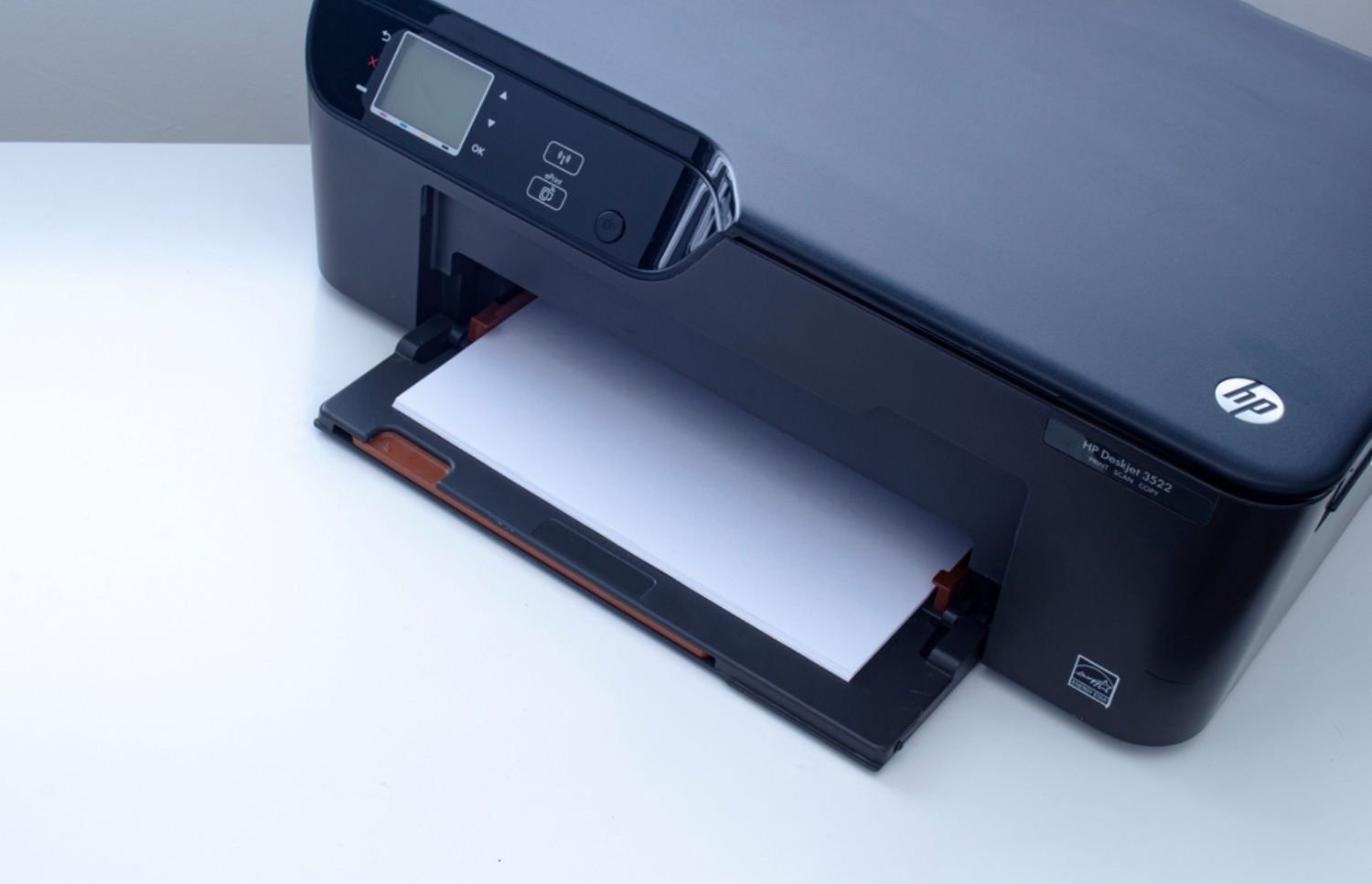
An HP printer not printing can disrupt workflow and delay important tasks that depend on timely output. Fixing these issues quickly helps maintain productivity and keeps your office operations running smoothly. Fortunately, many common printing problems can be resolved with a few simple troubleshooting steps.
Printers are vital for both small offices and large enterprises. However, when issues remain unresolved, they waste valuable time and increase operating costs. Therefore, understanding quick ways to diagnose and repair printer problems helps teams maintain efficiency and reduce frustration.
Troubleshooting Tips When Your HP Printer Is Not Printing
First, turn on the printer and ensure it is connected securely to a reliable power source. Check for paper jams, low toner, or depleted ink cartridges that could disrupt printing. Also, verify that the HP printer not printing problem is not caused by choosing the wrong default printer in your computer settings.
For wired printers, confirm that all cables are firmly plugged into both the printer and computer ports. If your printer is wireless, make sure it’s connected to the correct Wi-Fi network. Printing a network configuration page can help confirm whether a connectivity issue is creating delays or failed print jobs.

Next, restart both the printer and computer to clear any communication errors between devices. Turn them off for about 30 seconds, then power them back on to refresh connections. This simple step often resolves minor software conflicts that cause your HP printer to be unable to print during regular use.
If the issue continues, perform the top fixes for printers to identify and resolve deeper problems. Review printer settings, update drivers, and ensure proper paper and toner installation. Taking these actions early helps avoid downtime and keeps your printing operations running efficiently.
How to Check Connections if Your HP Printer Is Not Printing
Begin by checking the printer’s connection to your computer or network. For wired printers, confirm that all cables are properly secured and free from damage. Wireless users should ensure both the printer and computer are on the same Wi-Fi network to avoid HP printer not printing errors.
Next, print a network configuration page to confirm the printer’s IP address and connection strength. If the device appears offline, follow the on-screen prompts to reconnect it to your network. These steps are especially useful when the printer says it’s offline but remains powered and available.
Firewalls or security programs can occasionally block printer communication. Temporarily disabling them helps identify whether they are causing the issue. After testing, always reactivate your firewall to maintain system security and prevent future connection problems.
Update or Reinstall Printer Drivers
Outdated or corrupted drivers often cause an HP printer not printing properly. Visit HP’s official support page to download the most recent driver for your printer model. Always match the version to your operating system to avoid compatibility errors.
Run the installer, follow the on-screen steps, and restart your computer after installation. This refreshes printer communication settings and frequently resolves persistent printing issues. Updating drivers regularly ensures smooth, reliable performance for all your print jobs.
If problems remain, uninstall and reinstall the printer driver. On Windows, use the “Devices and Printers” section to remove and re-add the device. On macOS, make sure the operating system is current to prevent HP printer not printing complications related to outdated software.
Use HP’s New Diagnostic Support Options
As of May 2025, HP has retired the Print and Scan Doctor tool. In its place, HP now offers an updated, browser-based troubleshooting experience, Diagnose & Fix, through its official support page.
This online diagnostic system automatically detects your printer, checks for common printing or connectivity issues, and provides step-by-step repair guidance directly from HP’s support platform. It can help you clear print queues, update firmware, and restore communication between your printer and computer without requiring a download.
The new web-based tool works across more devices, including Windows, macOS, and mobile platforms, offering broader accessibility compared to the retired desktop version. For more detailed help, the HP support site also includes solutions for issues like printers printing blank pages or experiencing slow print performance.
Regularly using HP’s updated diagnostic resources ensures your printer runs smoothly and minimizes interruptions.

Get Professional Help When Needed
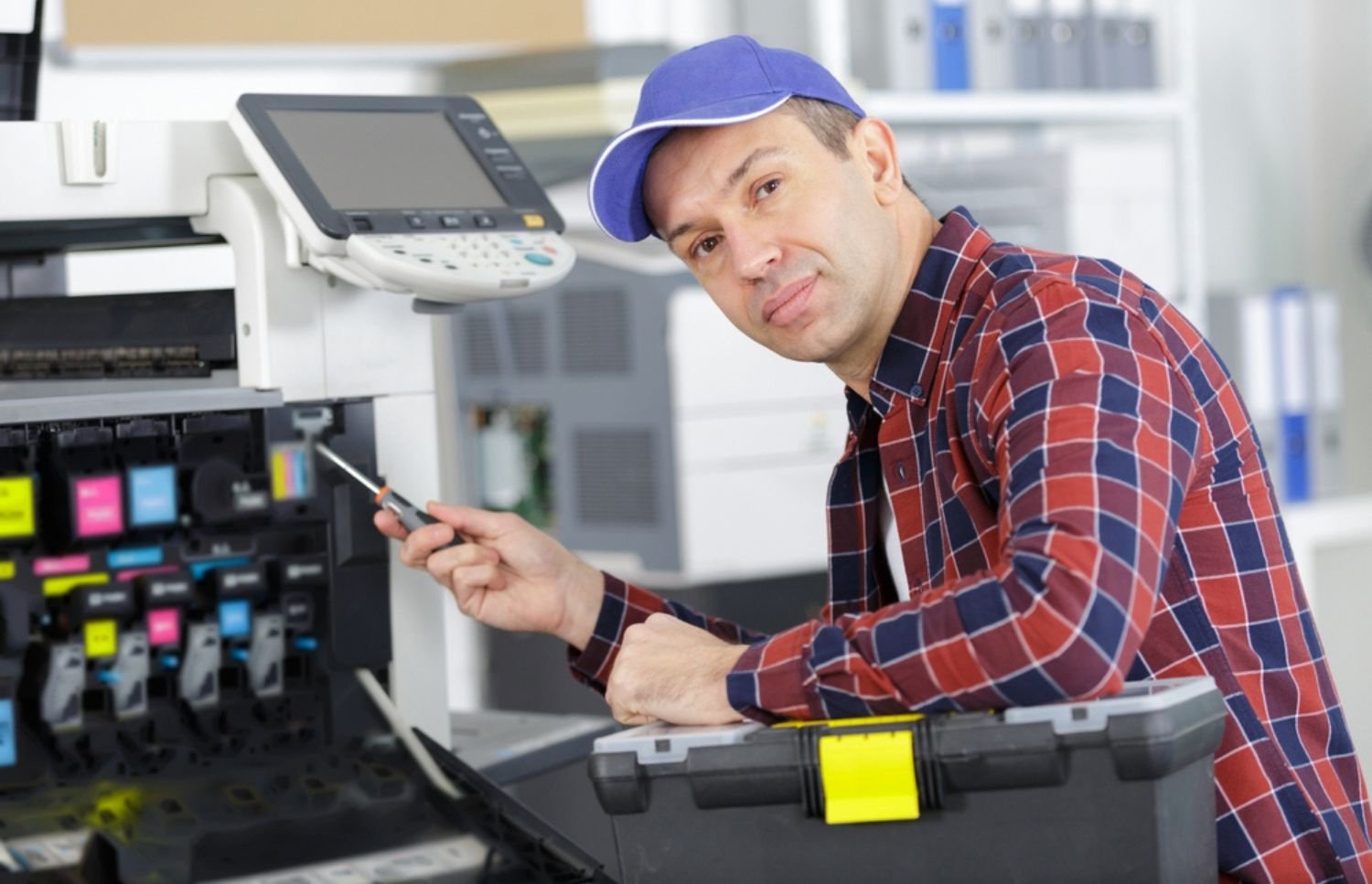
If troubleshooting fails, professional technicians can quickly identify and repair complex hardware or software problems. They are trained to fix HP printer not printing issues that extend beyond basic user maintenance. Timely expert intervention minimizes disruption and keeps printing operations running smoothly.
Before contacting support, gather details such as your printer model, operating system, and any displayed error messages. Providing accurate information helps technicians resolve problems efficiently and reduces waiting time. Being prepared also prevents repeated service calls and unnecessary downtime.
Check whether your printer is still under warranty, as coverage may include repair or replacement services. Many businesses also benefit from managed print solutions that offer proactive maintenance and remote monitoring. These services ensure reliability and help maintain seamless daily printing.
Keep Your HP Printer Working Every Day
Routine maintenance and timely updates prevent most printer issues before they escalate. Consistent care reduces errors, improves speed, and extends the lifespan of your device. Following these preventive steps ensures fewer instances of your HP printer not printing unexpectedly.
If challenges persist despite troubleshooting, professional on-site service provides reliable solutions without unnecessary downtime. Businesses gain confidence knowing experts can restore full functionality swiftly.
On-Site LaserMedic offers comprehensive on-site maintenance and print management designed to optimize performance. Partnering with professionals ensures your office stays productive, efficient, and free from recurring HP printer not printing problems.
Explore Section 179 Savings With On-Site Laser Medic. DISCLAIMER: Section 179 may offer tax advantages for qualifying equipment purchases. This information is for general awareness only and is not tax advice. Eligibility varies by business. Please consult your CPA or tax professional to understand how Section 179 applies to your specific situation.