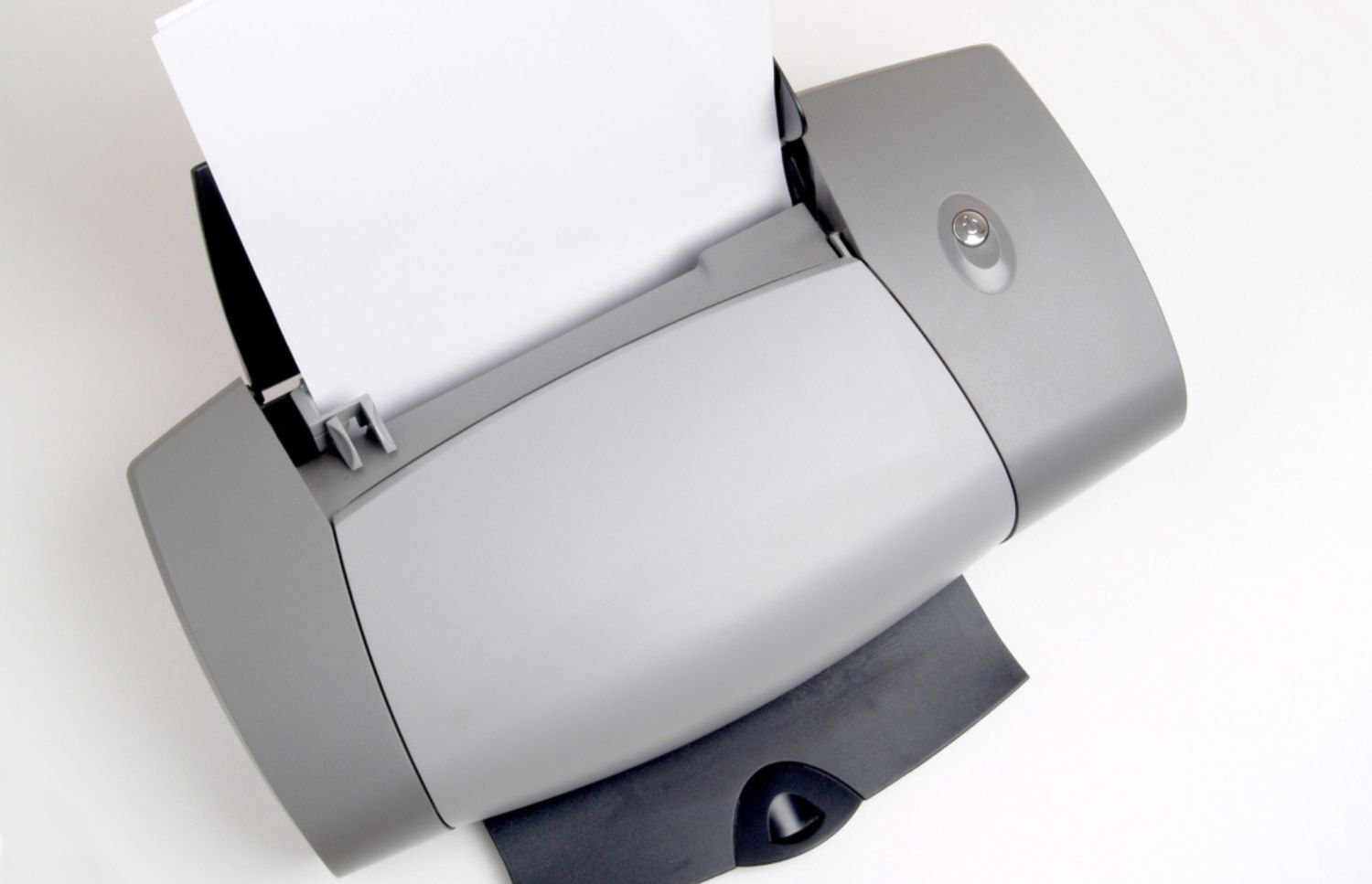
An HP printer printing blank pages can suddenly slow work and frustrate office staff. Often, simple checks solve this problem before it causes serious disruption. Therefore, knowing what causes blank-page printing helps your team prevent downtime and wasted resources.
Understanding printer failures lets business teams act quickly and efficiently. Moreover, quick fixes maintain workflow and avoid unnecessary service calls. Consequently, following clear troubleshooting steps ensures your office runs smoothly with minimal interruptions.
Common Causes When an HP Printer Is Printing Blank Pages
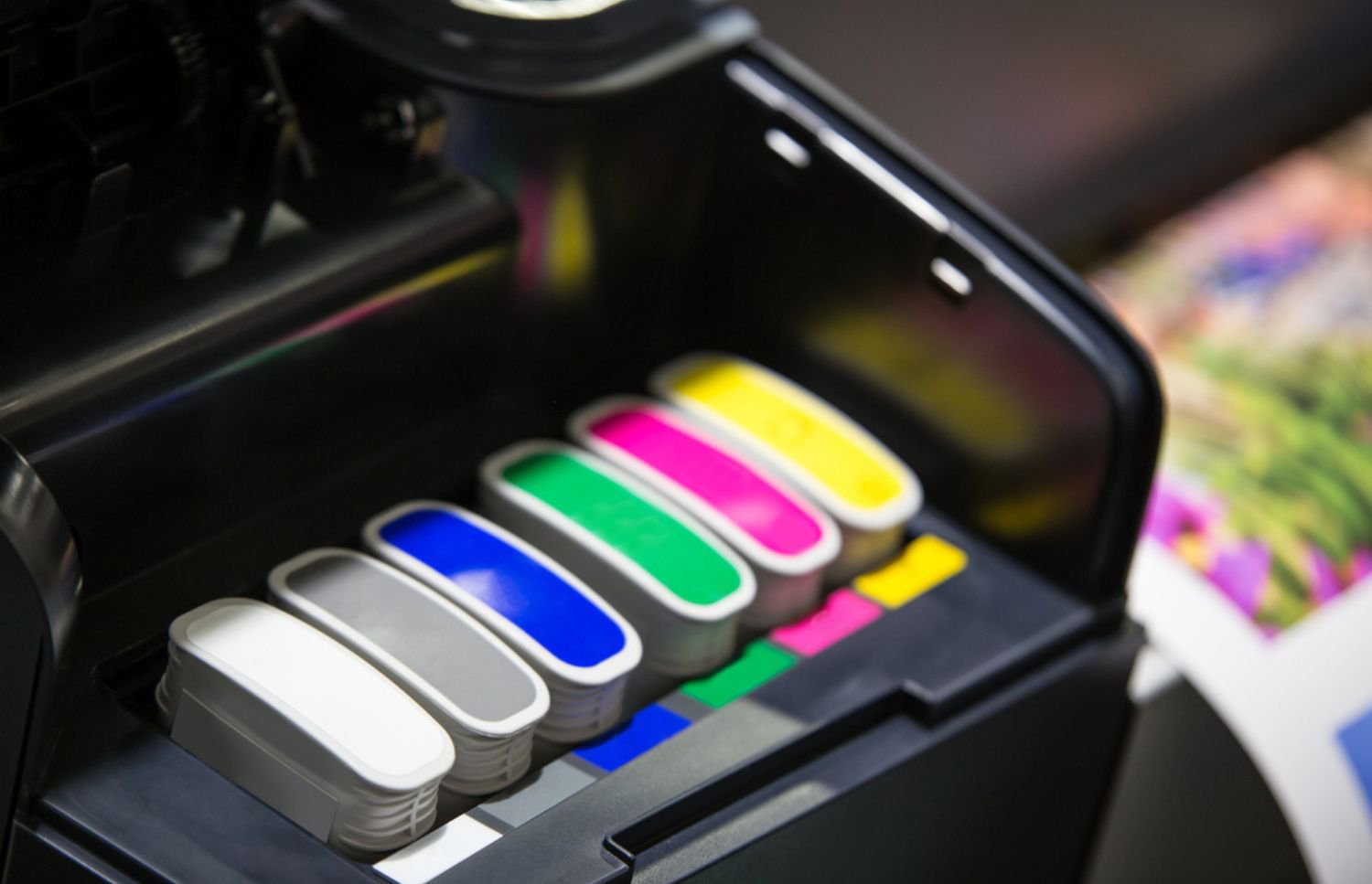
Low ink or toner levels frequently cause printers to produce blank pages. Therefore, checking cartridges regularly ensures that print jobs complete correctly without missing information. Additionally, misaligned or incorrectly installed cartridges also create blank-page issues that users can fix themselves.
Clogged or blocked printheads often stop ink from transferring to paper. Running the printer’s cleaning function usually clears minor blockages effectively. As a result, cleaning printheads reduces repeated blank-page occurrences.

Outdated or corrupted drivers can trigger software errors that prevent printing. Downloading and reinstalling the correct driver often restores normal printing functionality. Consequently, maintaining driver updates prevents frequent HP printer printing blank pages problems.
Internal printer errors sometimes print blank pages unexpectedly. Running a self-test page helps determine whether the issue is hardware or software-related. Addressing the root cause promptly prevents wasted resources and ensures consistent print quality.
Easy DIY Fixes to Resolve HP Printer Printing Blank Pages
When a printer suddenly stops producing text or images, it can interrupt important work and cause frustration. Fortunately, most blank-page problems stem from simple errors that users can fix without professional help. Following a few basic troubleshooting steps can quickly restore normal printing performance.
- Power Cycle the Printer: Start with a power cycle to reset the printer. Turning the device off for thirty seconds and then back on often fixes minor glitches. Therefore, repeated errors producing blank pages often disappear with a simple restart.
- Clean the Printhead: Cleaning the printhead with approved tools restores ink flow effectively. Gently wiping nozzles removes dried ink and debris. After cleaning, test print to confirm the issue resolves.
- Check Paper and Settings: Checking paper type and settings helps prevent printing problems. Incorrect paper selection or tray loading can stop toner from transferring. Adjusting paper alignment ensures clean and complete prints for every job.
- Factory Reset if Needed: Resetting the printer to factory settings clears persistent errors in some cases. Save configuration details before the reset to avoid losing custom settings. After resetting, the printer usually resumes normal function reliably.
Software Solutions When an HP Printer Is Printing Blank Pages
Drivers must match the operating system to avoid blank pages consistently. Check HP’s website for updates and install them carefully. Consequently, outdated software is a common reason for HP printer printing blank pages issues in busy offices.
Sometimes, print queues block output and prevent jobs from completing. Clearing pending jobs ensures new tasks reach the printer correctly. After clearing queues, staff often see immediate results, reducing frustration and downtime.
Running the Diagnose and Fix tool in HP Smart identifies hidden software problems automatically. The tool diagnoses driver issues and applies fixes effectively, ensuring smooth integration with cloud printing solutions for more reliable performance.
Software conflicts, such as incompatible security programs, may stop printing. Temporarily disabling firewall or antivirus software helps identify the root cause. Once conflicts are resolved, printing resumes reliably without further disruption.
When to Run Internal Tests for HP Printer Printing Blank Pages
Internal test pages verify whether the problem comes from hardware or software. Printing directly from the printer bypasses drivers and network issues. Consequently, comparing test output with normal documents helps pinpoint the source of blank pages.
These tests reveal nozzle blockages or ink delivery problems quickly. Many printers include automatic diagnostic pages showing which colors or sections fail. Therefore, office teams can act quickly on findings, avoiding prolonged workflow interruptions.
Test pages also identify calibration or alignment problems accurately. Incorrect calibration can prevent ink from reaching paper consistently. Following test results ensures precise adjustments and reduces future HP printer printing blank pages incidents.
Regular testing schedules maintain consistent print quality across offices. For large teams, testing once per week prevents unexpected downtime. Keeping records of test results helps track recurring printer printing blank pages issues.

When It’s Time to Seek Expert Help
Persistent blank-page printing indicates deeper mechanical or calibration problems. Professionals can inspect and repair components like printheads, fusers, or internal rollers quickly. Consequently, expert intervention ensures the printer performs reliably for all print jobs.
Document management practices also influence printer efficiency and longevity. Implementing electronic document management systems (EDMS) helps reduce excessive printing and minimizes device wear. The benefits of implementing an electronic document management system include faster document retrieval, improved security, lower operational costs, and enhanced workflow collaboration across departments.
Businesses experiencing recurring HP printer printing blank pages problems benefit from managed print services. On-site technicians provide preventive maintenance and repairs before problems escalate.
Keep Your HP Printer Producing Every Page
Regular checks and simple fixes prevent most HP printer printing blank pages issues from appearing. Moreover, simple cleaning, driver updates, and internal testing maintain print quality consistently. Proactive care reduces downtime and protects office productivity over the long term.
Professional services ensure minimal interruptions when issues persist. On-Site LaserMedic specializes in on-site diagnostics and repairs to get your printers printing correctly again. Contact On-Site LaserMedic to safeguard your office printing and maintain smooth daily operations.