
On a Monday morning, several people in the office open the printer list and see the same message: "Driver is unavailable." Nothing prints, and work starts to pile up.
When a printer driver is unavailable, Windows cannot communicate properly with the device. The problem may involve a missing, damaged or outdated driver. This guide explains how to fix the error, with advice for HP, Epson, Canon and Brother printers. It also explains how managed print services can help prevent recurring problems across an office.
What the Printer Driver Is Unavailable Message Means
A driver is a small piece of software that lets Windows and a printer understand each other. Microsoft notes that most printers require the latest driver to work well, so a missing, damaged or out-of-date driver is the first thing to suspect. The wording on screen is "Driver is unavailable," and some people search for it as "printer driver unavailable." It is the same message either way.
HP describes the message as appearing under the printer name in Printers & Scanners. Nothing in that wording tells you which fix you need, which is why the steps below start with the least disruptive one and work toward the most involved. Try them in order and test a print after each step, so you know exactly which one solved it.

How to Fix the "Printer Driver Is Unavailable" Error
The three fixes below move from the quickest to the most thorough: restart the service that manages print jobs, replace the driver, and, if that fails, start over with the printer itself. Most office printers are shared, so make the change on the computer that is reporting the error first.
Step 1: Restart the Print Spooler service
The Print Spooler is the Windows service that holds print jobs in line and passes them to the printer. If it has stalled, the printer can show errors even when the driver is fine. Microsoft gives these steps:
Before restarting the Print Spooler, open Settings, select Printers & scanners, choose the affected printer and open its print queue. Cancel any jobs that are stuck. Then restart the Print Spooler service and try printing a test page.
- Press Windows key + R, type services.msc, and press Enter.
- Find Print Spooler in the list of services.
- Right-click on Print Spooler and select Restart.
Then try printing a test page. Microsoft's page on spooler errors also says conflicting or old drivers are a common cause of spooler problems, and suggests you uninstall unnecessary, old, or duplicate printer drivers. If the printer list shows the same printer twice, keep that in mind for the next step.
Step 2: Update or reinstall the driver
Microsoft says Windows Update is the recommended method to download, install, and update printer drivers, so start there. Run Windows Update and install anything it offers. Microsoft also points out that optional drivers are not installed automatically. On Windows 11, if driver updates are listed, you select the drivers you want to install, then select Download and install.
If Windows Update does not help, go to the maker. Microsoft's guidance is that if Windows can't find a suitable driver, you install one from the printer manufacturer, and that you should install the latest driver for your printer model from the manufacturer's website. Download the driver or app for your exact model, run the installer, and restart the computer if it asks you to. The brand notes below say where each maker keeps its downloads.
Step 3: Remove the printer and add it again
When the first two steps fail, a clean start often works. In Settings, open Printers & scanners, choose the affected printer and select the Remove button. Then add it again. Microsoft says that if Windows does not find the printer on its own, you can select Add a new device manually and follow the instructions in the Add Printer window. After the printer installs, check Windows Update to see if there are updated drivers for it.
If the printer now installs but shows a different problem, such as being listed as offline while it is plainly connected, our guide to a printer that says offline but is connected covers that case.
Notes for HP, Epson, Canon and Brother Printers
Menus and steps differ by model, so use these notes as general guidance from each maker, and follow the prompts on your printer's screen or its manual for anything specific to your device.
HP
HP documents one specific cause on its own support page: a "Driver is unavailable" message under the printer name on an ARM64 Windows 10 PC connected by USB. That page applies to that situation, not to every HP printer. For it, HP's fix is to disconnect the printer from the USB connection and install the printer over a Wi-Fi connection, then, if your printer is found, click it and click Add device to complete the driver installation. HP's software and drivers page says the full feature driver package includes basic drivers and tools for printing and scanning and the HP Printer Assistant software. For other HP trouble, see our HP printer troubleshooting guide for businesses.
Epson
Epson advises users to search for their exact printer model on its Support website and check the Downloads tab for available drivers and software. Windows 11 may also install a built-in Windows Ready Print driver automatically. This can provide basic printing, but some advanced printer features may require Epson's full driver package. Check the support page for your model before installing or changing drivers.
Canon
Canon's instructions say to find your model on its support site and scroll down to the Print Driver and Scan Utility Installer or the Driver Setup Package for your model, and to connect the product by USB only if asked. For a bad install, Canon says to uninstall the printer driver, restart your computer, and then reinstall it. One detail helps offices that scan: Canon states the IJ Scan Utility is not a stand-alone download, so it comes with the driver installer. If your team scans as well as prints, our guide on how to scan from printer to computer covers the scanning side once the driver is back.
Brother
Brother notes that Windows Protected Print Mode can prevent some traditional Brother drivers and applications from installing. If this affects your printer, first check whether your model supports Windows Protected Print Mode with the Brother Print Support App. If you need to disable the mode to install a traditional driver, understand that this reduces some of Windows' printer-driver protections. Only change the setting when necessary, and follow Brother's instructions for your specific model.
Why Printer Driver Errors Multiply Across an Office
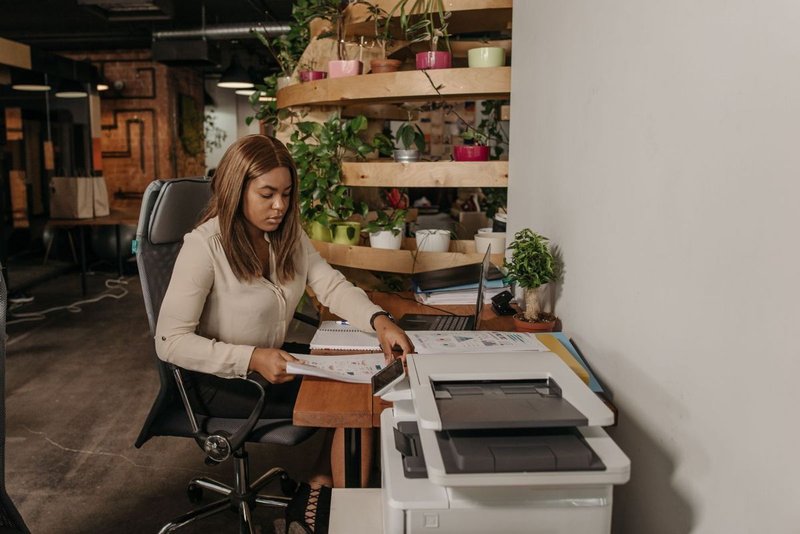
At home, one printer driver on one computer is usually easy to manage. In an office, several computers may use the same printer. Each computer has its own driver installation, and versions can differ.
Windows updates, new laptops and manual printer installations can create conflicts. Old or duplicate drivers can also cause problems. When a shared printer stops working, several employees may lose access at once. A small driver issue can quickly become an office-wide interruption.
When to Call a Professional
Call for help when you have worked through all three fixes and the message returns, when it affects several computers at once, or when no one in the office has the time to chase it. Repeated driver errors are a sign the print setup itself needs attention, not just one computer. On-Site LaserMedic lists 24/7 customer support on its contact page and offers repair and preventive maintenance for office printers, and its Preventative Printer Maintenance program is aimed at minimizing downtime. A technician can check the drivers, the network and the devices together, which is hard to do one computer at a time.
Reduce Printer Driver Problems with a Free Assessment
If your team has lost a morning to a missing driver, we would rather help you prevent the next one. Ask for a free assessment of your office printing and we will look at how your printers are set up and supported. You can read about our managed print services first, or contact us to get started.