Office printers rarely fail without warning. Most issues start small, like faded text, streaks, or error messages that signal it is time to replace ink. Knowing how to change ink in HP printer models correctly helps prevent unnecessary downtime, protects internal components, and keeps print quality consistent across everyday business documents. When ink is replaced on schedule and handled properly, printers last longer and perform more reliably.
Ink replacement is a routine task, but it is often rushed or done incorrectly, especially in busy office environments. That is where problems begin. The guide below walks through the correct process, explains common mistakes, and outlines why proactive ink management matters for long-term device health.
How to Change Ink in HP Printer: Before You Start
Before opening the printer, preparation makes the process smoother and reduces the risk of damage. HP printers are designed for easy cartridge access, but skipping basic steps can cause errors or ink leaks.
Start by confirming the printer model and cartridge type. Ink cartridges are model-specific, and using the wrong cartridge can prevent the printer from recognizing the replacement. Genuine HP cartridges are designed to work seamlessly with HP firmware and sensors.
Next, power on the printer. Most HP inkjet printers require the device to be on so the cartridge carriage moves into position. Attempting to change ink while the printer is off can damage internal mechanisms.
Keep the new cartridge sealed until installation. Ink dries quickly when exposed to air, and removing packaging too early can affect print quality. A lint-free cloth is also useful in case of accidental ink contact.

Step-by-Step Guide: How to Change Ink in HP Printer
The steps below apply to most HP inkjet printers, including OfficeJet, DeskJet, and ENVY models. Always check the manual for model-specific variations.
Step 1: Open the ink cartridge access door
- Lift or open the access panel. The cartridge carriage should slide into the center, making the cartridges accessible. Wait until it stops moving and becomes quiet before proceeding.
Step 2: Remove the empty cartridge
- Press down gently on the cartridge to release it, then pull it out toward you. Avoid touching the copper contacts or ink nozzles, as oils from your hands can interfere with performance.
Step 3: Prepare the new cartridge
- Remove the cartridge from its packaging and carefully peel off the protective tape. Do not shake the cartridge or touch the contacts.
Step 4: Insert the new cartridge
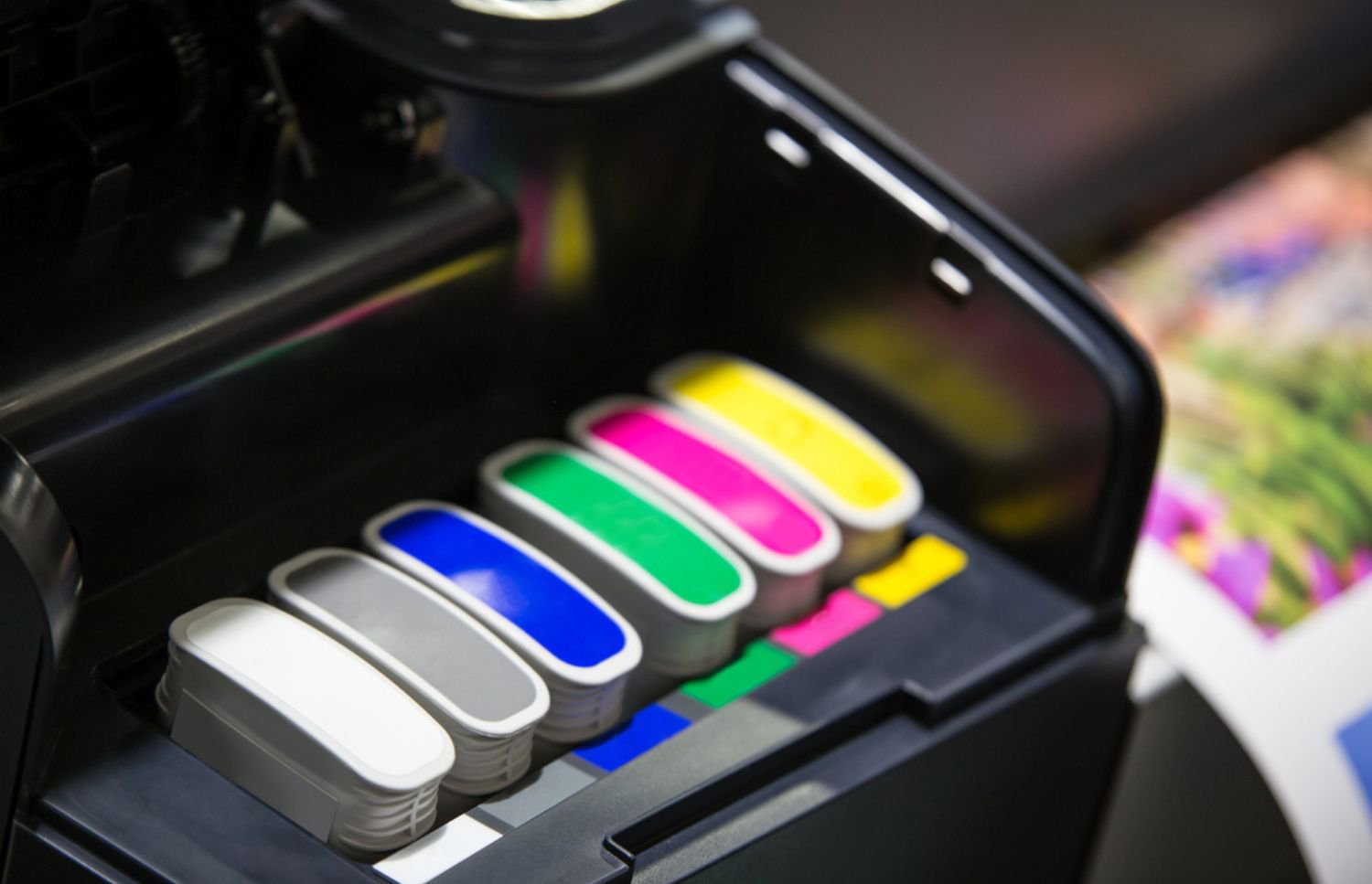
- Slide the cartridge into the correct slot until it clicks into place. Color cartridges and black cartridges are not interchangeable, so match them carefully.
Step 5: Close the access door
- Once the door is closed, the printer may run an initialization or alignment process. Allow this to complete without interruption.
Step 6: Align the cartridges if prompted
- Many HP printers automatically prompt for alignment. This step ensures optimal print quality and prevents streaking or color misalignment.
Following these steps consistently helps maintain clean prints and reduces wear on internal components.
Common Problems When You Change Ink in HP Printers
Even when users know how to change ink in HP printer models, small mistakes can create ongoing issues. One of the most common problems is installing cartridges incorrectly or forcing them into place. This can damage the cartridge slot and cause recognition errors.
Another issue is delaying ink replacement too long. Printing with nearly empty cartridges can introduce air into the ink system, leading to clogs and inconsistent output. Replacing ink promptly helps maintain stable pressure within the printhead.
Using incompatible or low-quality cartridges can also trigger firmware warnings or reduce print quality. While third-party cartridges may appear cost-effective, they often lead to higher maintenance costs over time due to leaks, residue buildup, or sensor errors.
Why Timely Ink Replacement Protects Printer Performance
Ink does more than deliver color to the page. It also plays a role in cooling and protecting printheads. Allowing cartridges to run completely dry increases the risk of overheating and permanent printhead damage.
Consistent ink replacement supports predictable output quality, which is critical for internal reports, client-facing documents, and compliance materials. It also reduces the need for repeated cleaning cycles, which consume additional ink and increase wear.
From an operational standpoint, unplanned ink outages disrupt workflows. Keeping spare cartridges on hand ensures printing tasks continue without interruption.

How to Manage Ink More Efficiently Across Multiple Printers
In environments with multiple devices, manual ink tracking quickly becomes inefficient. Users may replace cartridges too early, too late, or inconsistently across departments. This leads to wasted supplies and unpredictable maintenance needs.
Centralized print management simplifies this process. Monitoring tools track ink levels in real time, generate alerts, and forecast replacement schedules. This eliminates guesswork and reduces emergency supply orders.
Proactive management also supports better budgeting. Instead of reacting to outages, organizations gain visibility into usage patterns and can plan replacements strategically.
When Ink Issues Signal a Bigger Problem
Repeated cartridge errors, frequent streaking, or persistent alerts after replacement often indicate deeper issues. Printhead wear, sensor misalignment, or firmware conflicts can all mimic ink-related problems.
In these cases, replacing cartridges repeatedly will not resolve the issue. Professional diagnostics identify the root cause and prevent unnecessary supply waste. Addressing these problems early extends device lifespan and reduces long-term costs.
Taking Control of Ink Management and Printer Health
Knowing how to change ink in HP printer models correctly is essential, but it is only one part of maintaining a reliable print environment. Keeping spare cartridges available, replacing ink on time, and responding quickly to warning signs all contribute to consistent performance.
For organizations managing multiple HP printers, manual oversight often leads to missed issues and unnecessary downtime. This is where structured print management delivers real value. With proactive monitoring, preventative maintenance, and on-site support, printer issues are resolved before they impact productivity.
Onsite Laser Medic helps organizations move beyond reactive fixes by managing supplies, servicing devices, and optimizing print infrastructure for long-term performance. Gain control over ink management, reduce downtime, and extend the life of your HP printers. Contact Onsite Laser Medic today.