
Unexpected printing delays quickly disrupt business operations when essential client billing reports are needed. Unresolved HP instant ink problems halt office workflows and waste staff hours during critical deadlines. Fast troubleshooting keeps your workplace efficient while preventing minor hardware glitches from escalating into costly breakdowns.
Managed supply subscription services should theoretically streamline office inventory, but technical glitches often create headaches. Communication errors between subscription software and desktop hardware cause sudden operational pauses. Identifying the exact root cause saves time and restores corporate document output without frustration.
Unresponsive Cartridges and Hardware Recognition Errors
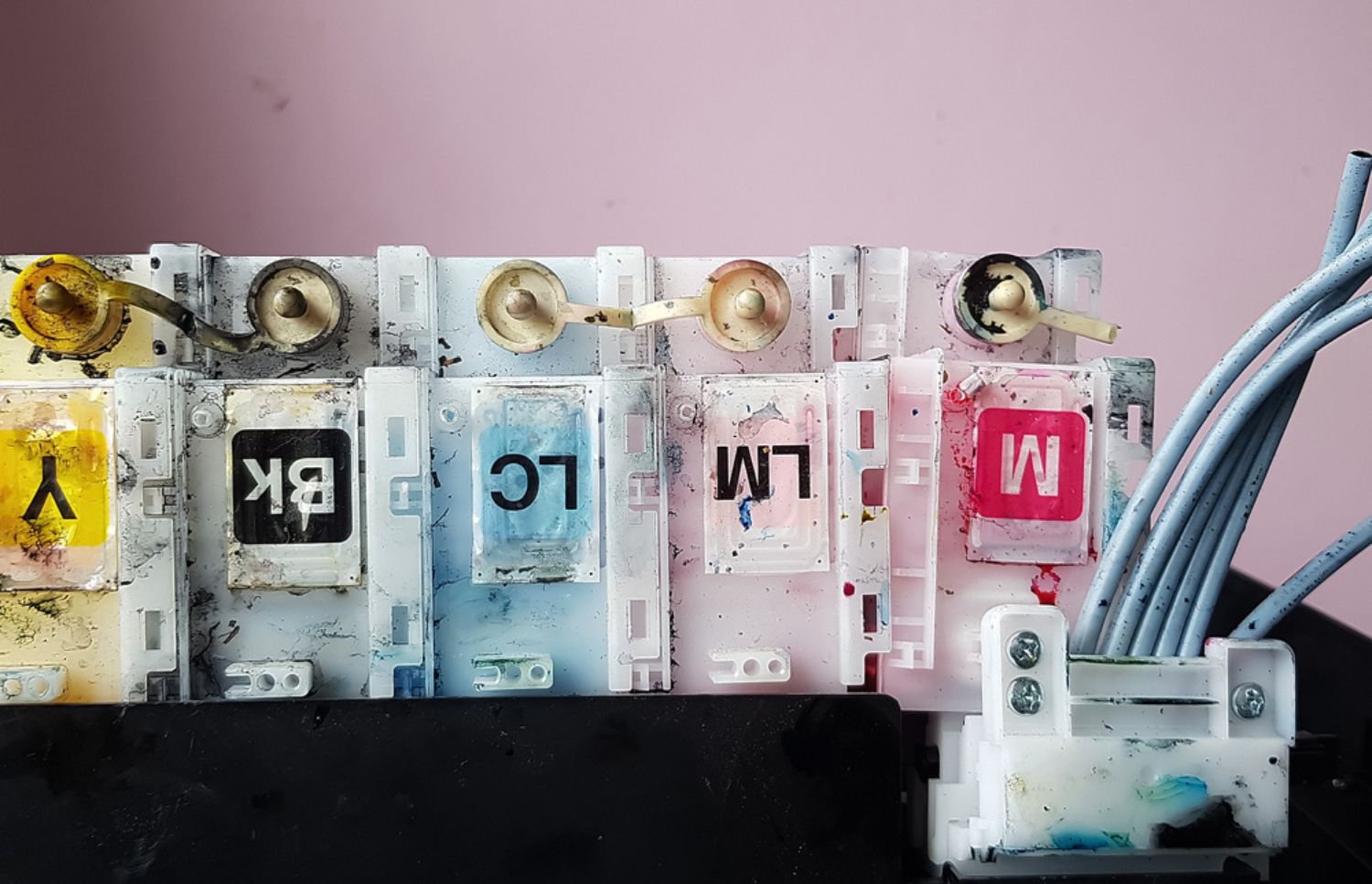
Cartridge recognition errors often appear after installing fresh supply units into active network devices. For instance, dirty chip contacts, outdated device firmware, or improper seating cause HP instant ink problems. Consequently, cleaning electrical contacts and hard resetting the hardware restores proper device communication.
Businesses facing repeated installation errors should double-check their device status before attempting technical repairs. Learning how to check ink levels on HP printer helps staff verify active supply levels. Correct installation methods step by step prevent mechanical alignment issues inside the main carriage assembly.
Preventing recurring hardware recognition errors requires routine internal maintenance and proper storage conditions for cartridges. Resolving these HP instant ink problems early prevents dust accumulation from disrupting internal microchip signals. Proper handling practices extend total device lifespan and secure consistent print output across corporate departments.
Dealing with HP Instant Ink Problems and Delivery Delays
Shipping delays and tracking errors leave busy offices stranded without crucial printing supplies during peak quarters. Automated reordering algorithms sometimes miscalculate actual consumption rates, worsening HP instant ink problems. Monitoring supply cycles manually avoids unexpected supply exhaustion when important corporate projects approach tight deadlines.
Unreceived shipments often stem from outdated account addresses or network disruptions blocking automated usage updates. Verifying active network connections regularly keeps tracking systems accurate and reduces HP instant ink problems. Reviewing account dashboards prevents billing holds that silently pause automated shipments.
Understanding supply lifespans helps administrative staff plan backup inventory without wasting corporate financial resources. Reviewing guidelines on does printer ink expire helps staff maintain safe emergency reserve stock. Strategic inventory management guarantees your team never faces total printing downtime during workload surges.
Resolving Subscription Errors and Network Disconnections
Disrupted internet connections prevent subscription services from validating active licenses on local desktop units. In particular, local security firewalls or modified network settings frequently trigger cartridge authorization errors. Therefore, restoring steady network connectivity clears subscription errors and unlocks local printing capabilities.
Expired payment methods or system billing updates cause service suspensions without direct warning prompts. Updating corporate credit card credentials on file fixes these administrative account holds. Regularly auditing subscription billing accounts prevents unexpected hardware locks across your primary office workforce.
Networked office equipment requires stable connectivity to maintain uninterrupted operational access for connected users. Enterprise routers should prioritize print server traffic during peak business hours. Consistent network management ensures seamless background authorization across every workstation in the building.
Troubleshooting HP Instant Ink Problems During Critical Print Jobs
Sudden hardware failures during time-sensitive tasks cause severe operational bottlenecks for growing enterprise teams. Addressing hardware delays requires systematic technical troubleshooting to restore functionality. Executive administrators can execute essential diagnostic checks to resolve recurring software and hardware conflicts.
Follow these quick diagnostic steps to resolve active cartridge errors and software holds:
- Disconnect the main power cable and wait sixty full seconds before restarting.
- Remove and reinsert print cartridges firmly until internal locking clips engage completely.
- Clean dirty electrical chip contacts using a soft, dry cloth.
- Update internal system firmware through official manufacturer device management portals.
- Verify active subscription account status and billing details inside administrative control panels.
Following diagnostic procedures for an HP printer not printing isolates software bugs from physical component breakdowns. Systematic troubleshooting resolves recurring HP instant ink problems and protects workplace productivity.
Proper Maintenance Procedures for High-Volume Office Printing
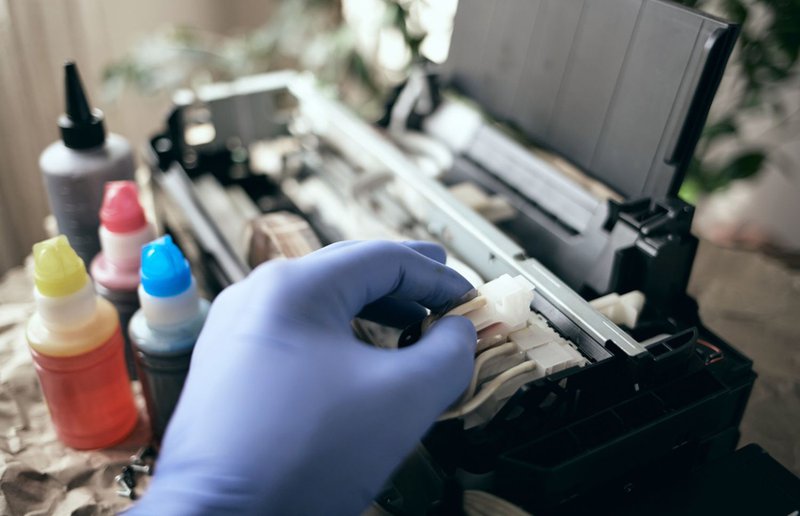
Routine physical maintenance prevents minor cartridge errors and unexpected HP instant ink problems from escalating. Following standard procedures on how to change ink in commercial units protects sensitive electrical connections. Careful handling extends equipment service life and maintains crisp visual output across business documents.
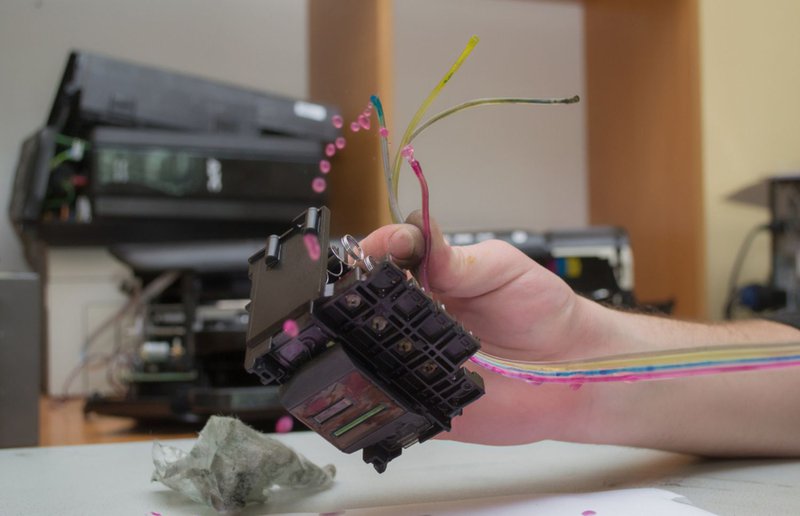
Scheduled maintenance routines remove dried residual fluid and debris from sensitive printhead assemblies. Addressing HP instant ink problems prevents dust buildup inside printheads. Establishing weekly diagnostic checks keeps output quality crisp and reduces internal hardware wear.
Training office staff on correct paper loading and supply replacement techniques prevents daily physical jams. Careful media handling reduces stress on sensitive feed mechanisms and minimizes emergency repair calls. Consistent internal care keeps print fleets operating efficiently while protecting your overall technology investment.
Strategic Fleet Support with On-Site LaserMedic
Strategic fleet management eliminates the administrative burden of handling individual subscriptions and HP instant ink problems. Professional managed services ensure your workplace maintains consistent document output without unexpected technical delays. Partnering with dedicated printing experts resolves persistent HP instant ink problems while keeping equipment performing.
On-Site LaserMedic provides comprehensive repair services, supply management, and expert technical support for enterprise fleets. Customized service plans eliminate frustrating downtime while lowering your organization's total ongoing operational expenses. Contact On-Site LaserMedic to speak with a technician and optimize your printing infrastructure today.